> ## Documentation Index
> Fetch the complete documentation index at: https://requestly-mintlify-changelog-requestly-past-week-38456.mintlify.site/llms.txt
> Use this file to discover all available pages before exploring further.

# Team Workspaces

> Learn how to setup team workspace in Requestly

Requestly’s **Team/Shared Workspaces** make collaboration easy by **syncing** all the **workpace data** between members can work together on **HTTP rules, mock APIs, the API client, and sessions**. Whether you're debugging, testing, or managing API workflows, a shared workspace ensures your team stays in sync and productive.

### Setting Up a Shared Workspace

Let's create a shared workspace and invite some friends to collaborate in real-time. Follow these simple steps to get started.

<iframe className="w-full aspect-video rounded-xl" src="https://www.youtube.com/embed/Lv19_pZQ6gg" />

### Create a Workspace

<Steps>
  <Step title="Open Workspace Switcher">
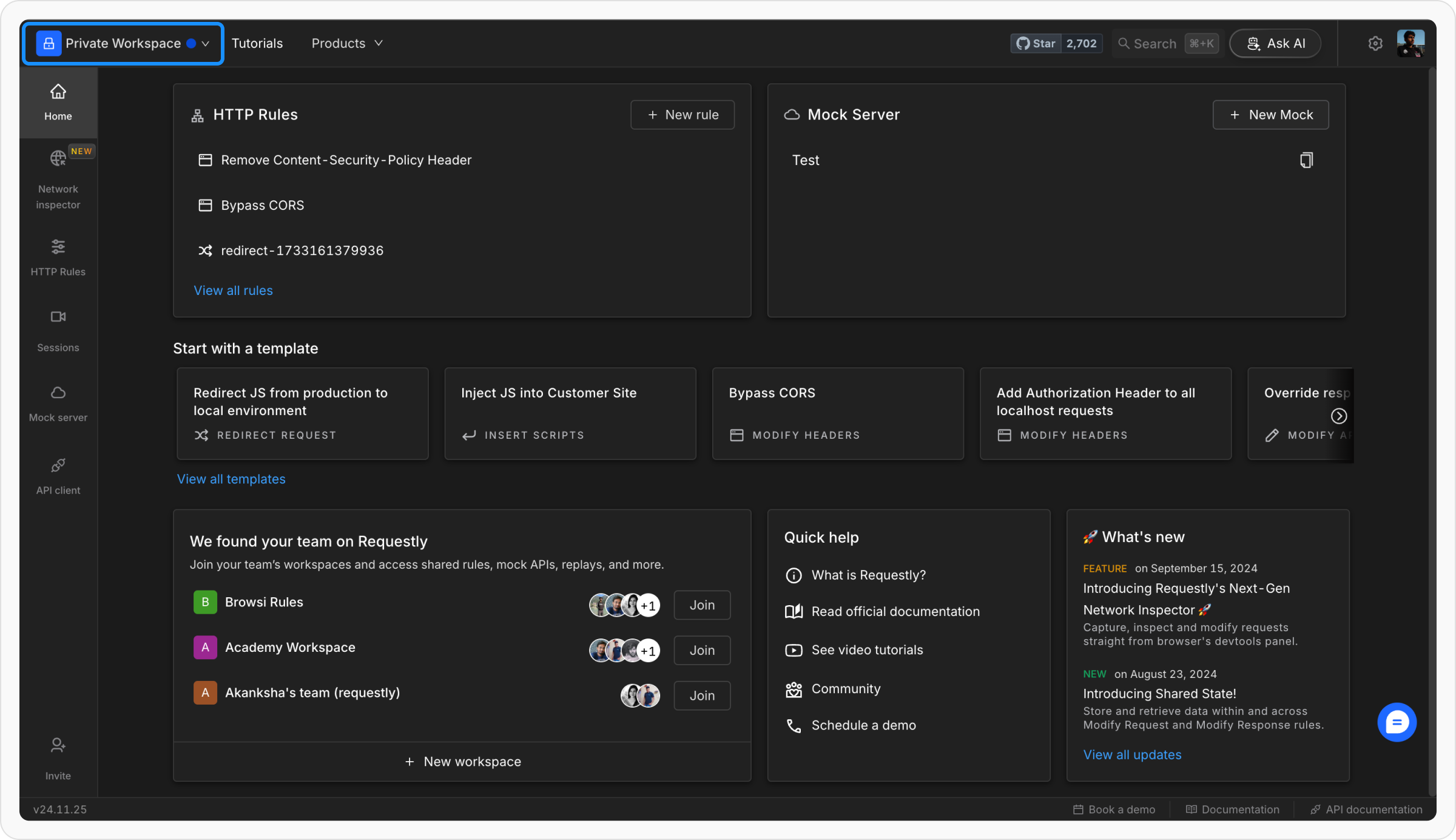
    In the top-left corner of the sidebar, find the workspace dropdown (the default option is **Private Workspace**).

    <img src="https://mintcdn.com/requestly-mintlify-changelog-requestly-past-week-38456/vF3qe2iiJjRDLN_B/images/how-to-get-started-with-shared-workspace/3bf05219-44ea-43a1-847e-3e0c7f90f852.png?fit=max&auto=format&n=vF3qe2iiJjRDLN_B&q=85&s=aca487c6a3335e22bad0c33b71e517d8" alt="" align="left" fullwidth="true" width="2400" height="1384" data-path="images/how-to-get-started-with-shared-workspace/3bf05219-44ea-43a1-847e-3e0c7f90f852.png" />
  </Step>

  <Step title="Access the Workspace Options">
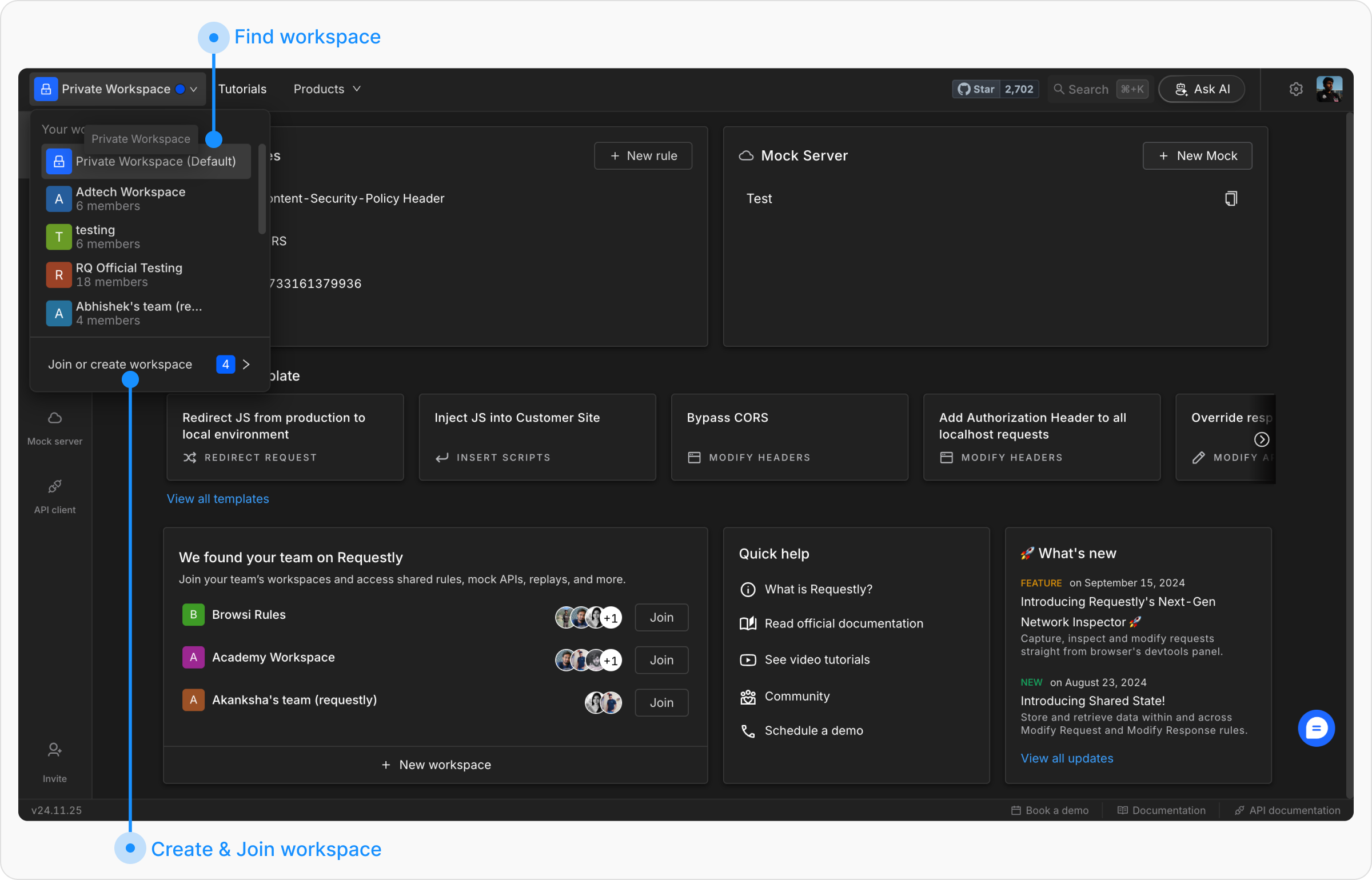
    Click on the workspace dropdown and select the option **Join or Create Workspace**.

    <img src="https://mintcdn.com/requestly-mintlify-changelog-requestly-past-week-38456/vF3qe2iiJjRDLN_B/images/how-to-get-started-with-shared-workspace/d9a760e4-9511-415e-bce6-1a2b2052047f.png?fit=max&auto=format&n=vF3qe2iiJjRDLN_B&q=85&s=723d4e95a66e001768bc4d918b8b3a1c" alt="" align="left" fullwidth="true" width="2400" height="1540" data-path="images/how-to-get-started-with-shared-workspace/d9a760e4-9511-415e-bce6-1a2b2052047f.png" />
  </Step>

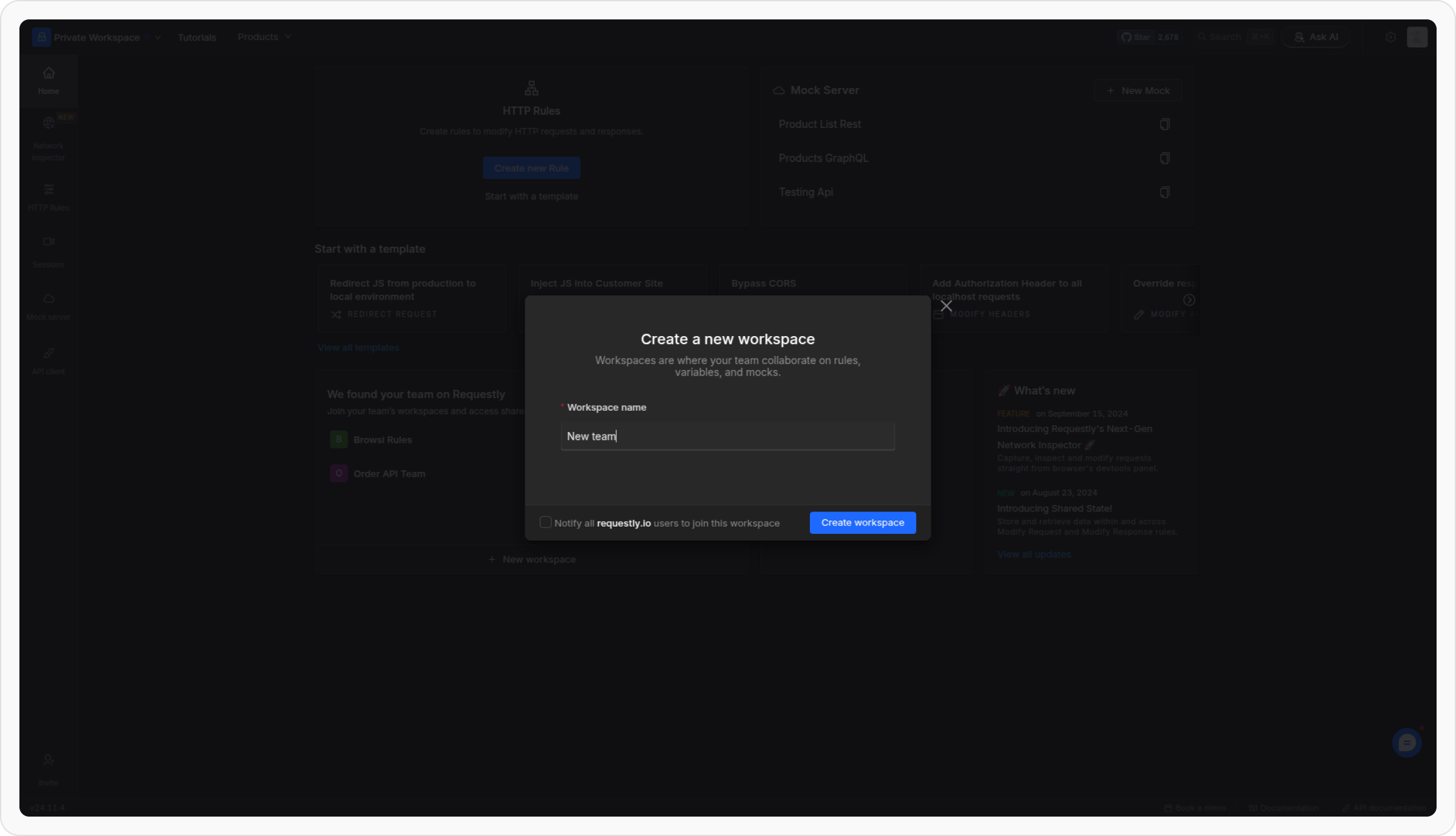
  <Step title="Create a New Workspace">
    Click on **Create New Workspace** from the options. Enter a name for your workspace in the provided field and click **Create Workspace**.

    <img src="https://mintcdn.com/requestly-mintlify-changelog-requestly-past-week-38456/vF3qe2iiJjRDLN_B/images/how-to-get-started-with-shared-workspace/81a0eeee-4622-4de1-b15e-dd48a798ddac.png?fit=max&auto=format&n=vF3qe2iiJjRDLN_B&q=85&s=9710ce6b069cf5c10db6f431053c66e5" alt="" align="left" fullwidth="true" width="2400" height="1378" data-path="images/how-to-get-started-with-shared-workspace/81a0eeee-4622-4de1-b15e-dd48a798ddac.png" />

    <Tip>
      You can also check the checkbox at the bottom of this popup to invite your entire team while creating the workspace.
    </Tip>
  </Step>
</Steps>

## Managing Team Members

To effectively manage access, admins can add team members, update their roles, or remove team members within a workspace. Below are the steps to perform these actions.

### Adding New Members

<Steps>
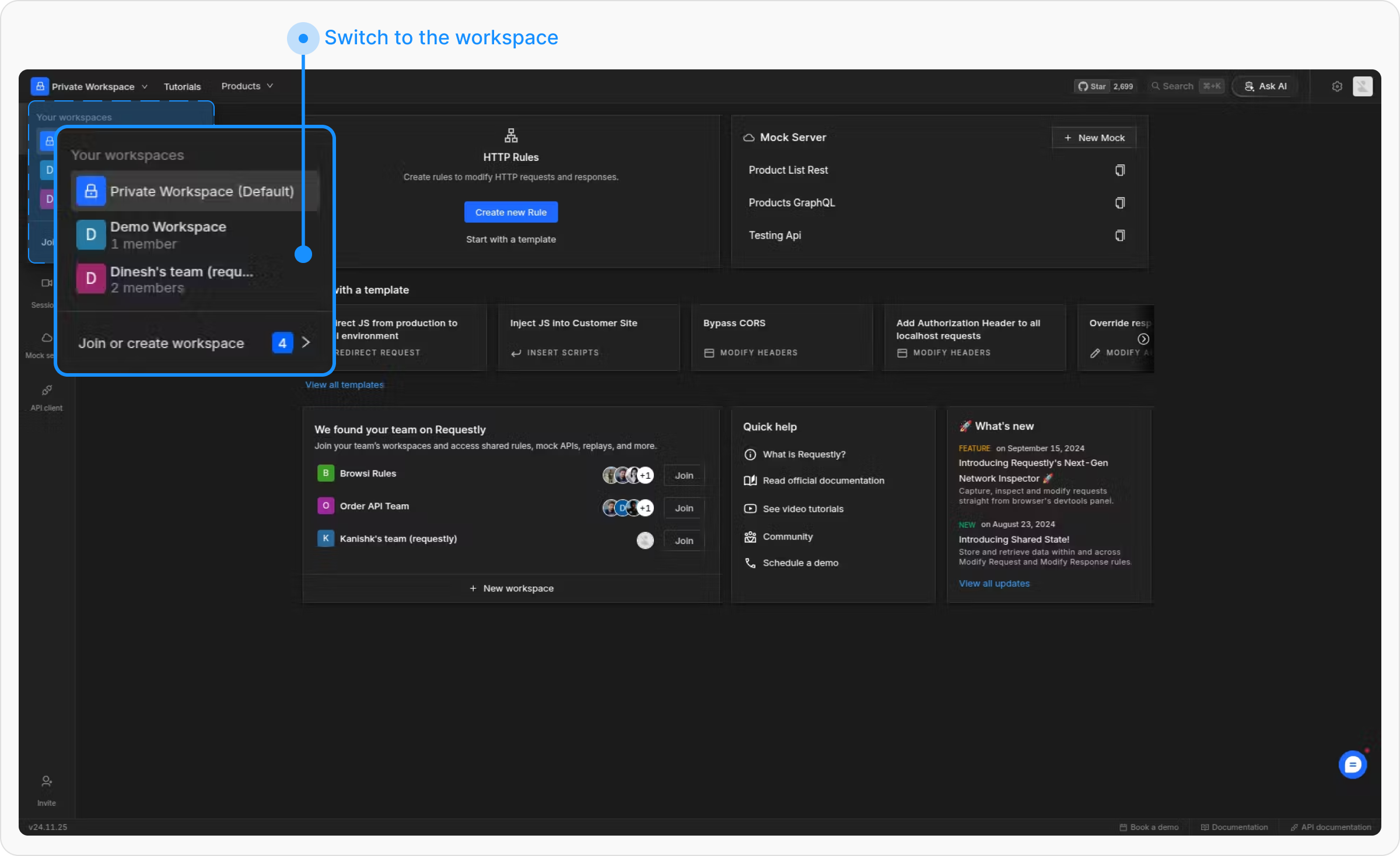
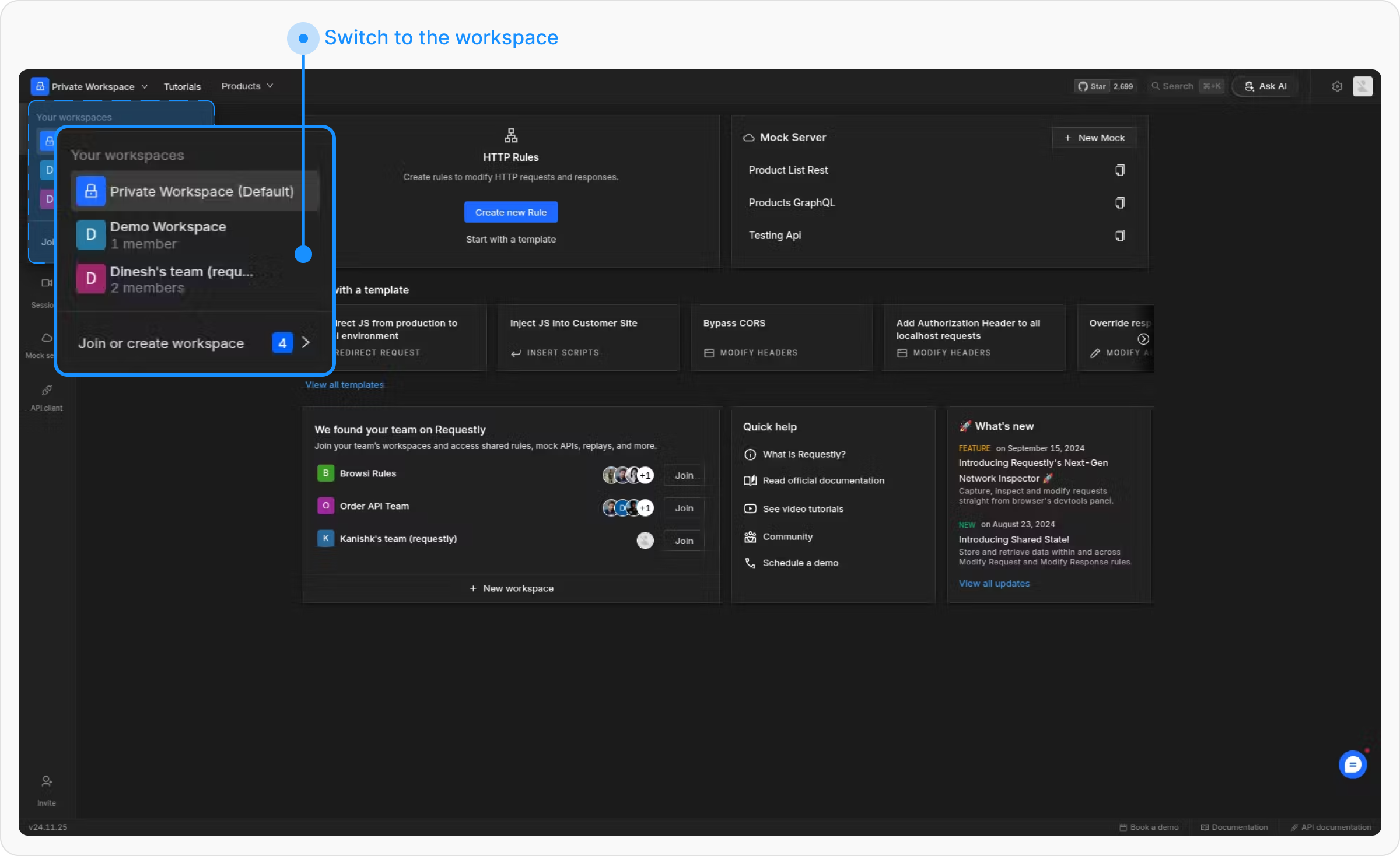
  <Step title="Switch to the Workspace">
    Navigate to the Requestly dashboard and switch to the workspace where you want to add members.

    <img src="https://mintcdn.com/requestly-mintlify-changelog-requestly-past-week-38456/vF3qe2iiJjRDLN_B/images/how-to-get-started-with-shared-workspace/233f23c4-d4ef-4dee-aed4-837c800f4cdb.png?fit=max&auto=format&n=vF3qe2iiJjRDLN_B&q=85&s=aeb5b30d8432e8d6df2e5124ed6193ca" alt="" align="left" fullwidth="true" width="2400" height="1468" data-path="images/how-to-get-started-with-shared-workspace/233f23c4-d4ef-4dee-aed4-837c800f4cdb.png" />
  </Step>

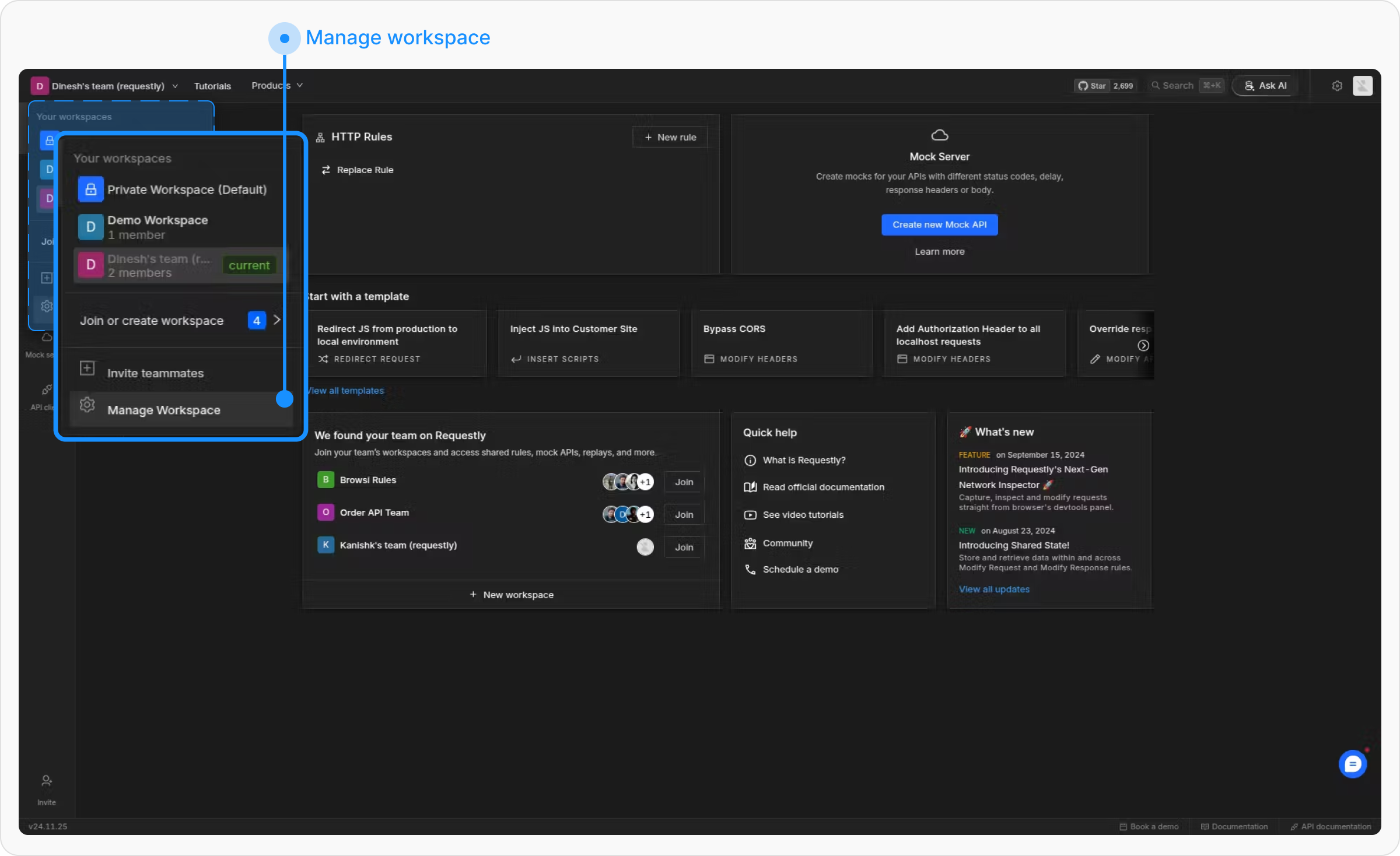
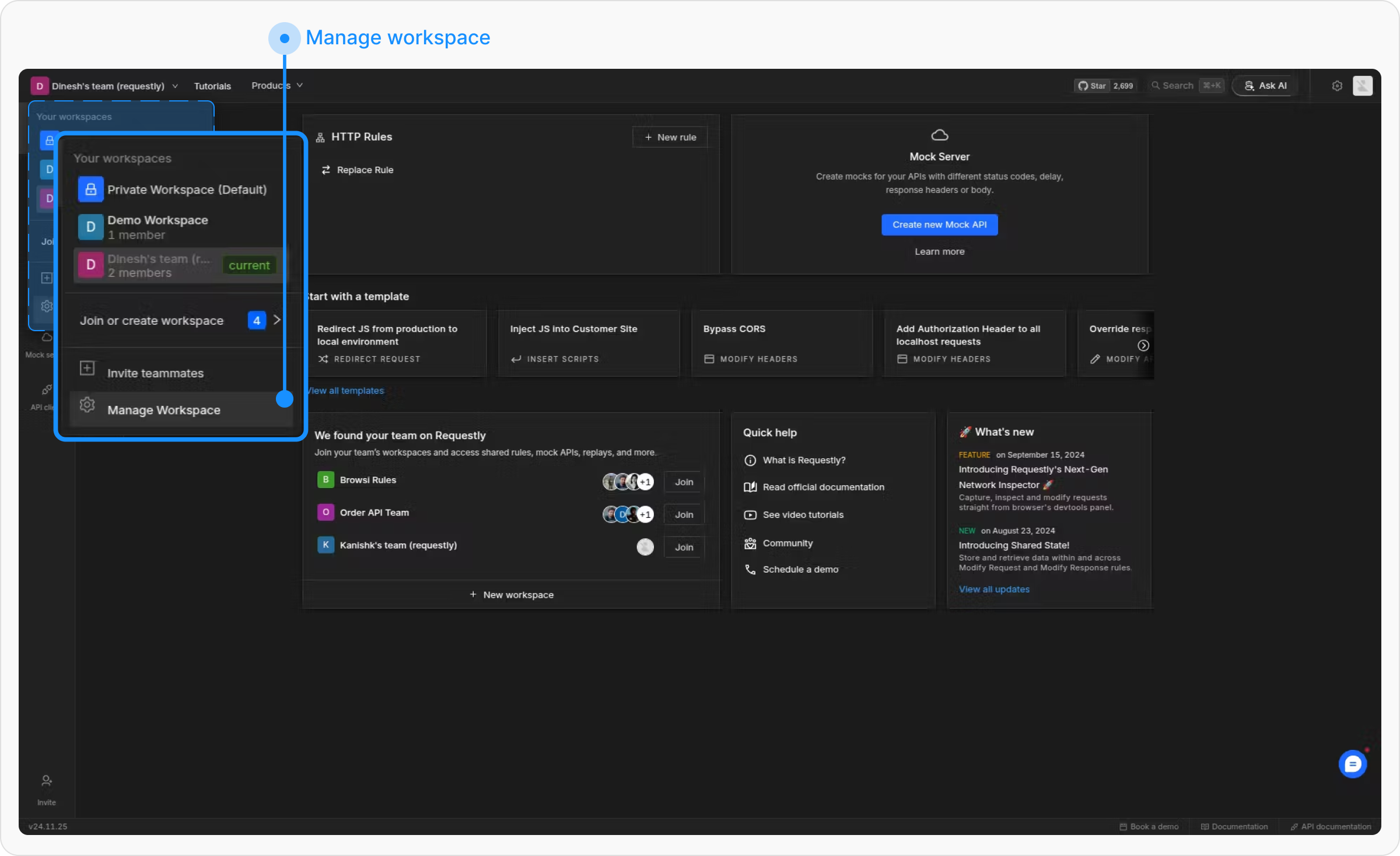
  <Step title="Open Manage Workspace">
    Open the switch workspace panel and select **“Manage workspace”**

    <img src="https://mintcdn.com/requestly-mintlify-changelog-requestly-past-week-38456/vF3qe2iiJjRDLN_B/images/how-to-get-started-with-shared-workspace/a5671767-467d-4b76-8a4d-31d7c774dd11.png?fit=max&auto=format&n=vF3qe2iiJjRDLN_B&q=85&s=45439ae4627425b23d069a920013e8af" alt="" align="left" fullwidth="true" width="2400" height="1468" data-path="images/how-to-get-started-with-shared-workspace/a5671767-467d-4b76-8a4d-31d7c774dd11.png" />

    Here you can directly invite teammates or go to workspace settings to see the list of users before inviting.
  </Step>

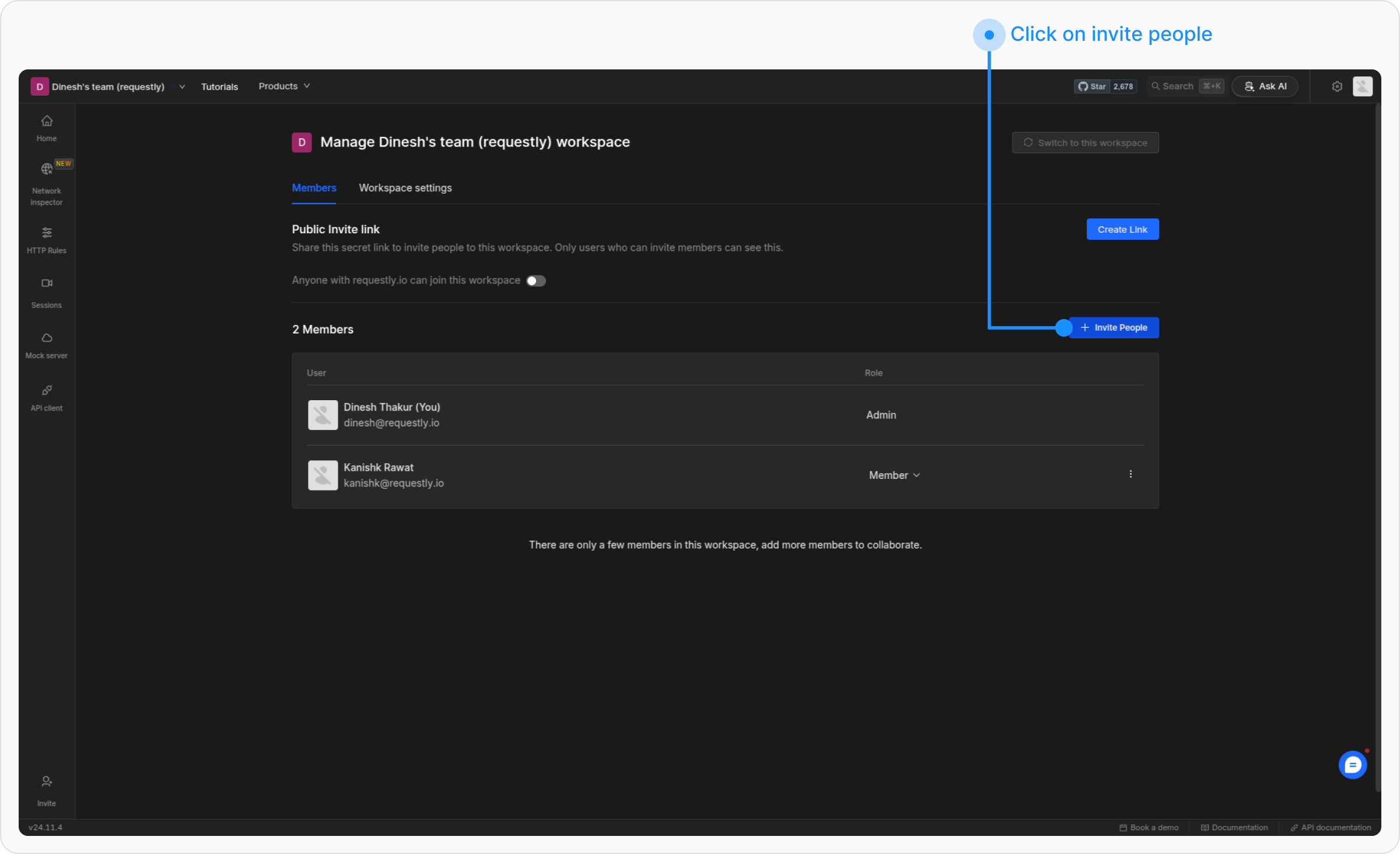
  <Step title="Invite People">
    In the workspace settings, click the **+ Invite People** button.

    <img src="https://mintcdn.com/requestly-mintlify-changelog-requestly-past-week-38456/vF3qe2iiJjRDLN_B/images/how-to-get-started-with-shared-workspace/9dc9e35b-51ad-4eb2-b0b8-dcc3661102f0.png?fit=max&auto=format&n=vF3qe2iiJjRDLN_B&q=85&s=3a8a401d111710792b71e35bd5d347bd" alt="" align="center" fullwidth="true" width="2400" height="1464" data-path="images/how-to-get-started-with-shared-workspace/9dc9e35b-51ad-4eb2-b0b8-dcc3661102f0.png" />
  </Step>

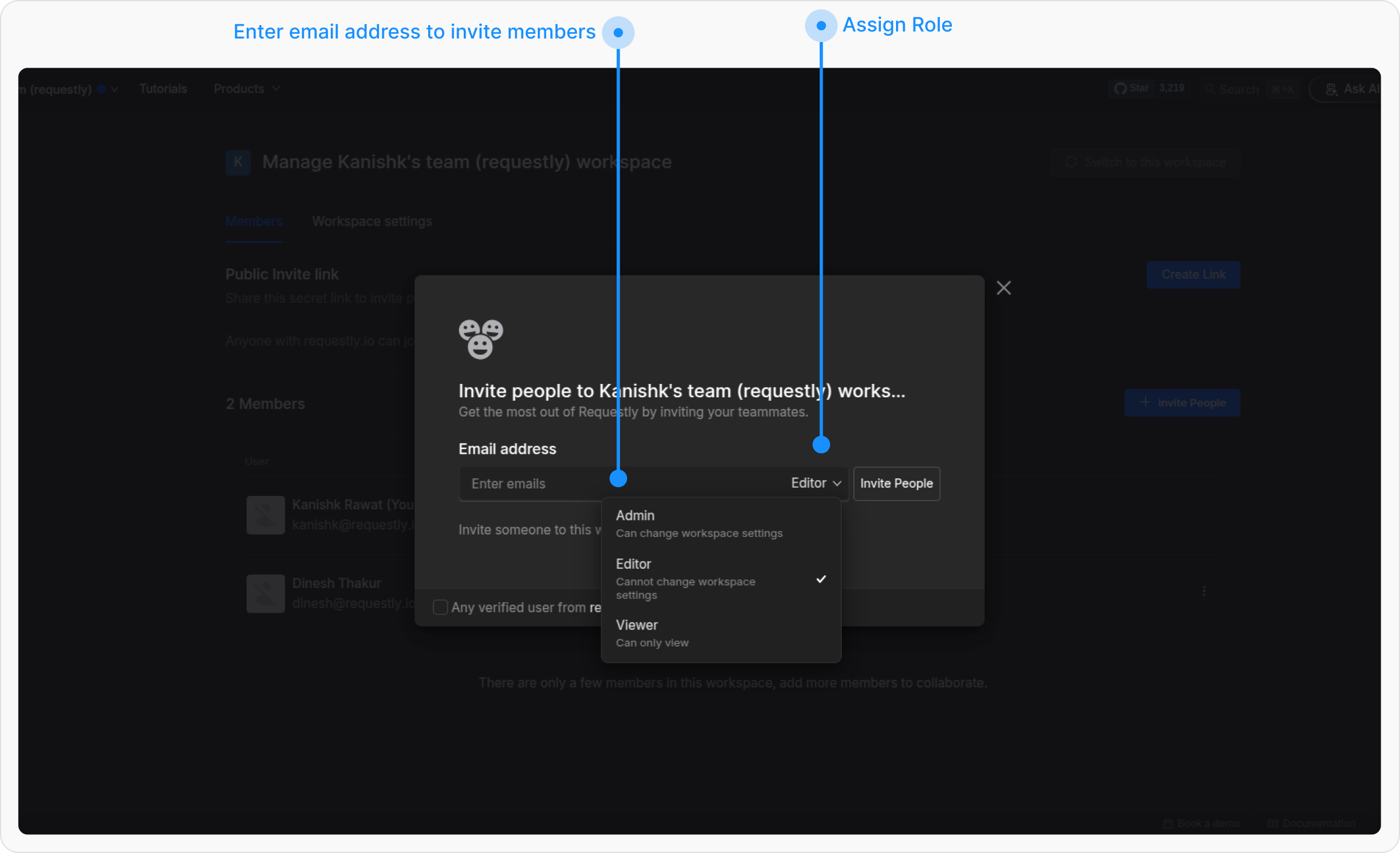
  <Step title="Invite Teammates & Set Roles">
    Enter your teammates email addresses and assign them specific roles.

    <img src="https://mintcdn.com/requestly-mintlify-changelog-requestly-past-week-38456/vF3qe2iiJjRDLN_B/images/how-to-get-started-with-shared-workspace/62157e63-6fcf-4c07-a28d-4deb833a49f4.png?fit=max&auto=format&n=vF3qe2iiJjRDLN_B&q=85&s=72ede20c4f348d526f40d1827d71b491" align="center" fullwidth="false" width="2400" height="1462" data-path="images/how-to-get-started-with-shared-workspace/62157e63-6fcf-4c07-a28d-4deb833a49f4.png" />
  </Step>

  <Step title="Await Confirmation">
    Invited members will receive an email to join the workspace. Once they accept, they will appear in the members list.
  </Step>
</Steps>

### Removing Members

<Steps>
  <Step title="Switch to the Workspace">
    Navigate to the Requestly dashboard and switch to the workspace where you want to add members.

    <img src="https://mintcdn.com/requestly-mintlify-changelog-requestly-past-week-38456/vF3qe2iiJjRDLN_B/images/how-to-get-started-with-shared-workspace/c2f2b1e9-1cab-4f6e-bfd4-86c1dd1a0fb6.png?fit=max&auto=format&n=vF3qe2iiJjRDLN_B&q=85&s=495f7dd784726ee1a987840d73c2b6e6" alt="" align="center" fullwidth="true" width="2400" height="1468" data-path="images/how-to-get-started-with-shared-workspace/c2f2b1e9-1cab-4f6e-bfd4-86c1dd1a0fb6.png" />
  </Step>

  <Step title="Open Manage Workspace">
    Open the switch workspace panel and select **“Manage workspace”**

    <img src="https://mintcdn.com/requestly-mintlify-changelog-requestly-past-week-38456/vF3qe2iiJjRDLN_B/images/how-to-get-started-with-shared-workspace/3f8b873f-cff4-4f02-8044-63ecd70a12f2.png?fit=max&auto=format&n=vF3qe2iiJjRDLN_B&q=85&s=d3b1ca757d554c9eb8885fa5b1b28372" alt="" align="center" fullwidth="true" width="2400" height="1468" data-path="images/how-to-get-started-with-shared-workspace/3f8b873f-cff4-4f02-8044-63ecd70a12f2.png" />
  </Step>

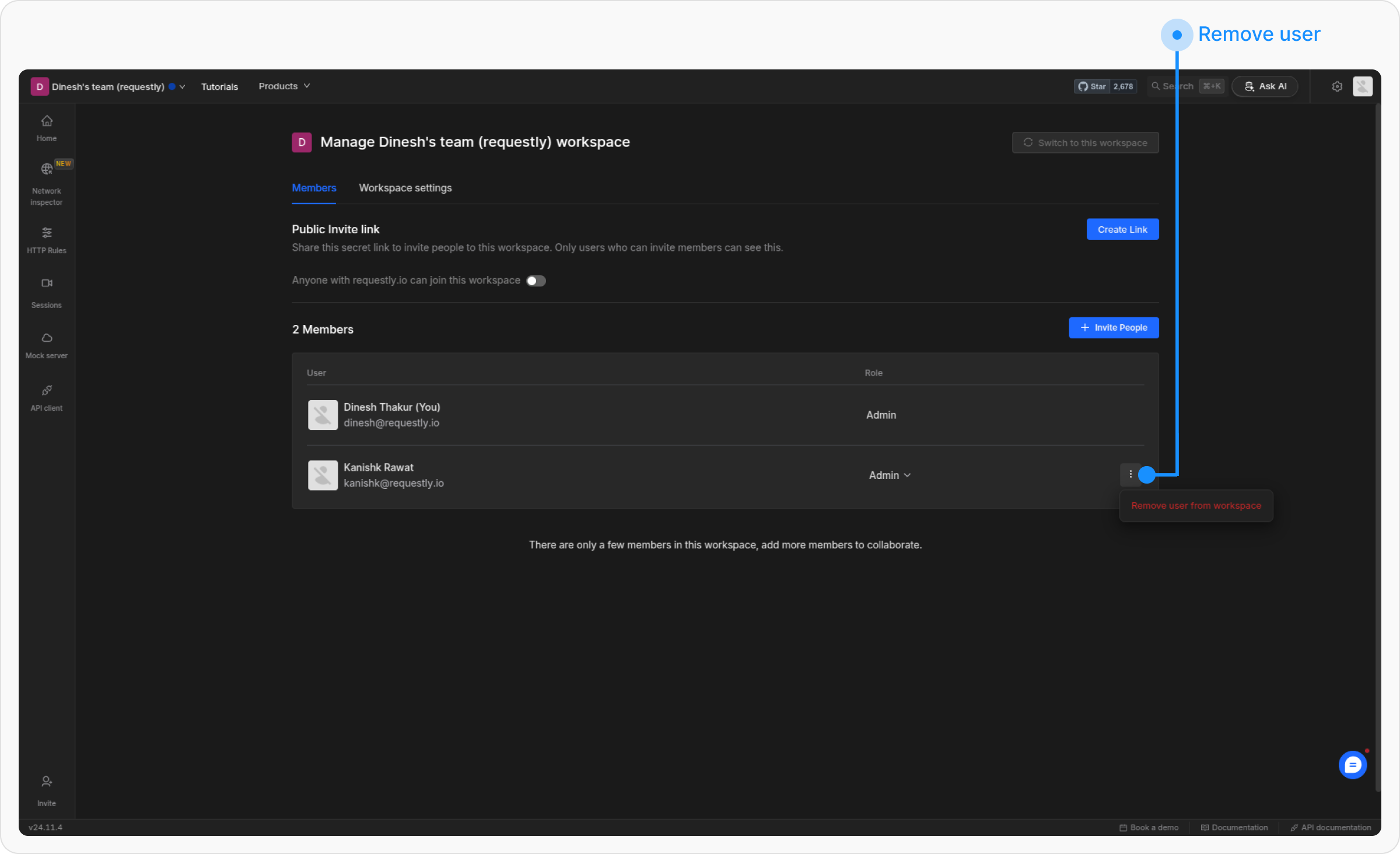
  <Step title="Remove the member">
    Locate the member you want to remove from the members’ list. Click the 3-dot menu next to their role and select **Remove user from Workspace**.

    <img src="https://mintcdn.com/requestly-mintlify-changelog-requestly-past-week-38456/vF3qe2iiJjRDLN_B/images/how-to-get-started-with-shared-workspace/53da708b-c0bf-44b5-b1b1-68be9493cd7c.png?fit=max&auto=format&n=vF3qe2iiJjRDLN_B&q=85&s=2377cc14ccc32cae86bdb0329856fedc" alt="" align="center" fullwidth="true" width="2400" height="1464" data-path="images/how-to-get-started-with-shared-workspace/53da708b-c0bf-44b5-b1b1-68be9493cd7c.png" />
  </Step>

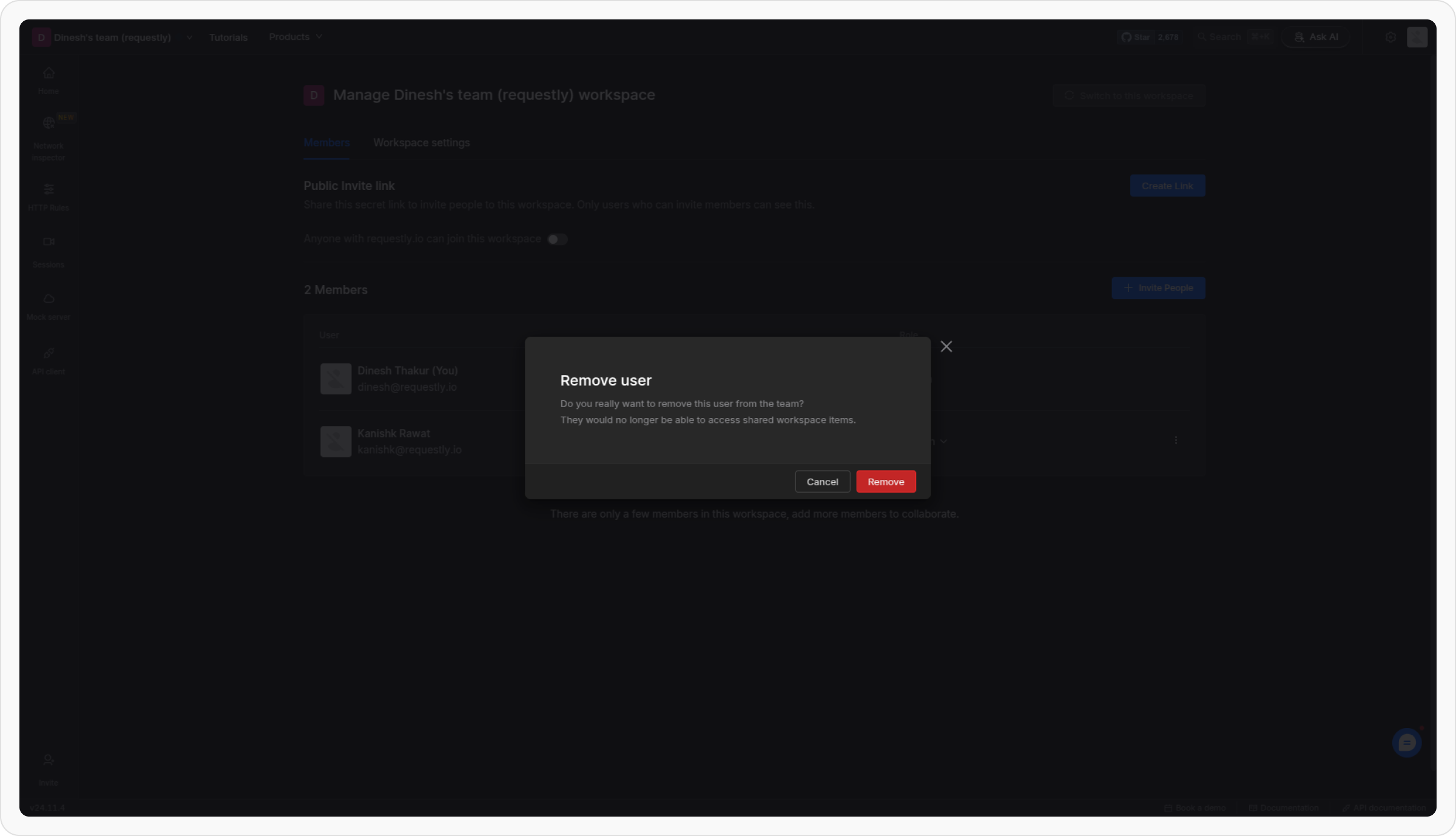
  <Step title="Confirm the Removal">
    A confirmation prompt will appear. Confirm the action to remove the member successfully.

    <img src="https://mintcdn.com/requestly-mintlify-changelog-requestly-past-week-38456/vF3qe2iiJjRDLN_B/images/how-to-get-started-with-shared-workspace/64736a55-a369-47b7-9df1-1c9ddd68ced0.webp?fit=max&auto=format&n=vF3qe2iiJjRDLN_B&q=85&s=82e87cc072839df6ec4587a57c9390e6" alt="" align="center" fullwidth="true" width="2400" height="1378" data-path="images/how-to-get-started-with-shared-workspace/64736a55-a369-47b7-9df1-1c9ddd68ced0.webp" />
  </Step>

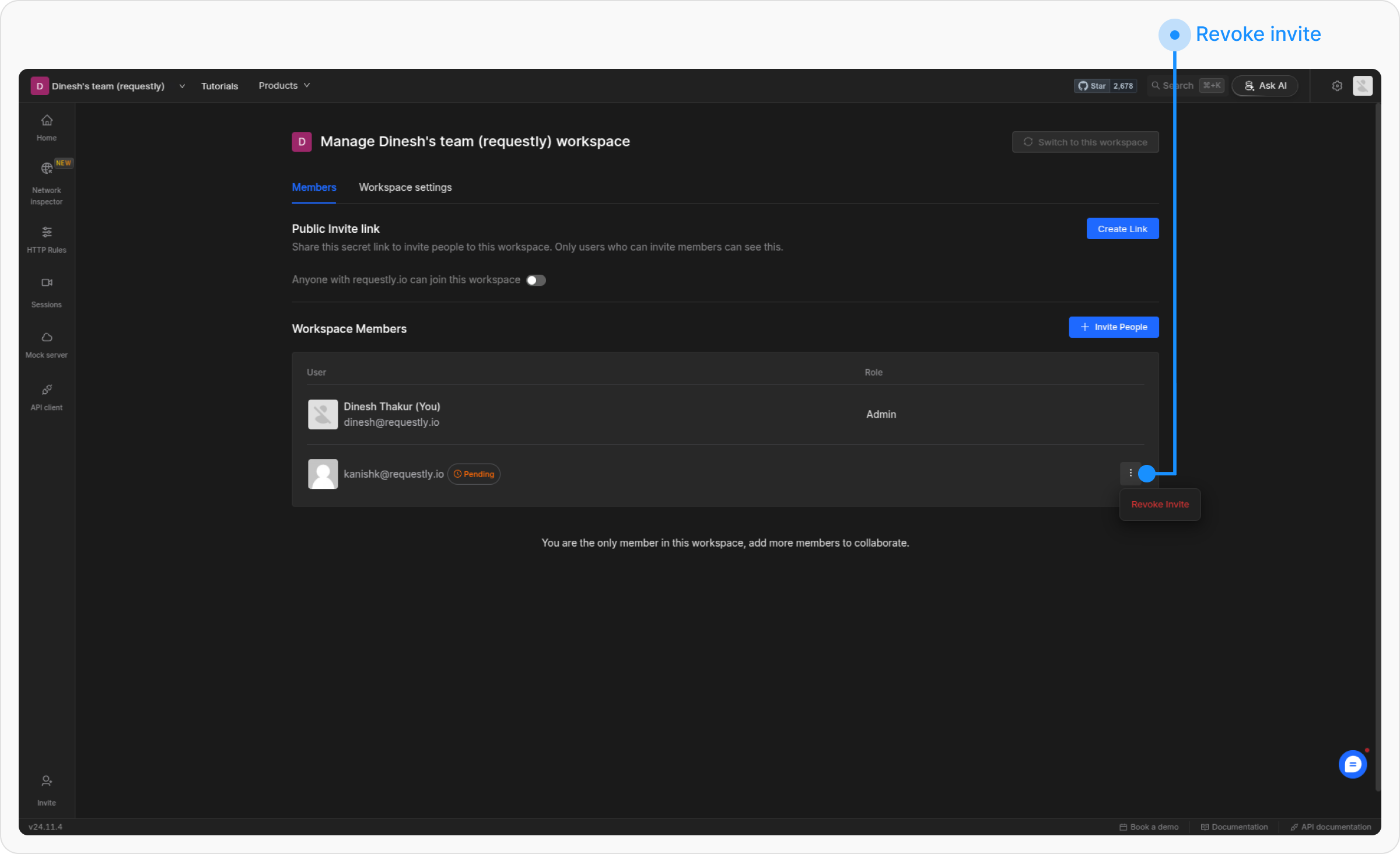
  <Step title="Revoke Pending Invites">
    If a member has been invited but not yet joined, you can revoke their invite from the same dropdown.
    <img src="https://mintcdn.com/requestly-mintlify-changelog-requestly-past-week-38456/vF3qe2iiJjRDLN_B/images/how-to-get-started-with-shared-workspace/aef144cf-cf9c-403a-99bc-87ba10866a29.png?fit=max&auto=format&n=vF3qe2iiJjRDLN_B&q=85&s=e33a38a864b5360adb8abd8f8415ee17" alt="" align="center" fullwidth="true" width="2400" height="1464" data-path="images/how-to-get-started-with-shared-workspace/aef144cf-cf9c-403a-99bc-87ba10866a29.png" />
  </Step>
</Steps>