> ## Documentation Index
> Fetch the complete documentation index at: https://requestly-mintlify-changelog-requestly-past-week-38456.mintlify.site/llms.txt
> Use this file to discover all available pages before exploring further.
# Billing & Subscriptions
> Learn how to manage billing teams, assign licenses, update payment info, and view billing history with Requestly's easy-to-use tools.
***
Efficient license management is essential for seamless operations. Requestly allows organizations to effortlessly manage their subscriptions and licenses.
### Role Overview
| | Billing Manager | Admin | Member |
| --------------------------------------------- | --------------- | ----- | ------ |
| Subscriptions (Upgrade or Cancel) | Yes | - | - |
| Payment Details (Edit card & billing details) | Yes | - | - |
| License Management | Yes | Yes | - |
| Manage Admins | Yes | Yes | - |
| Manage Members | Yes | Yes | - |
| Access Premium Features | No | Yes | Yes |
To better understand how Billing Teams works, watch the following video:
***
## Creating a Billing Team
Setting up a billing team is the first step in managing your organization's licenses. Follow these steps to create one:
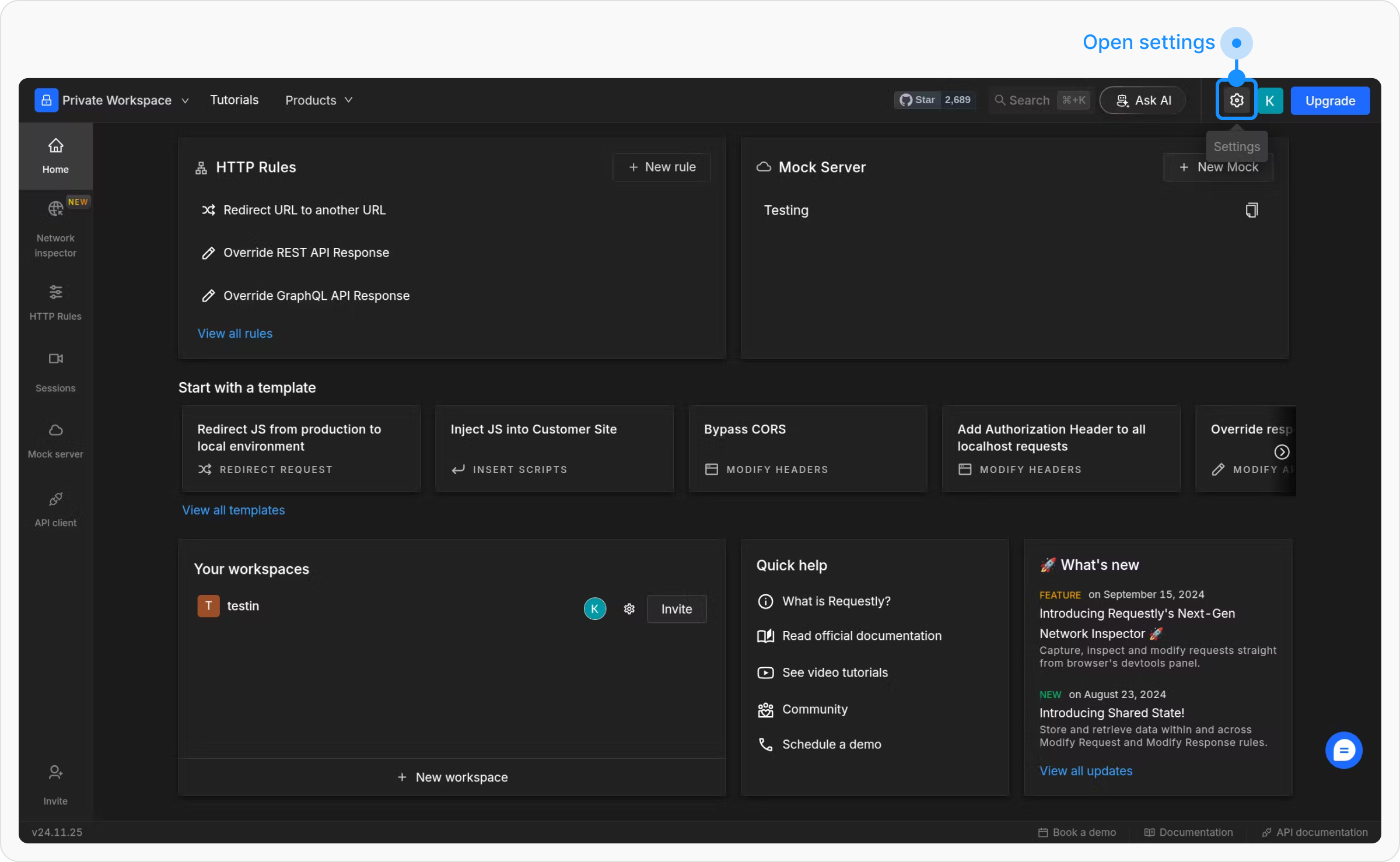
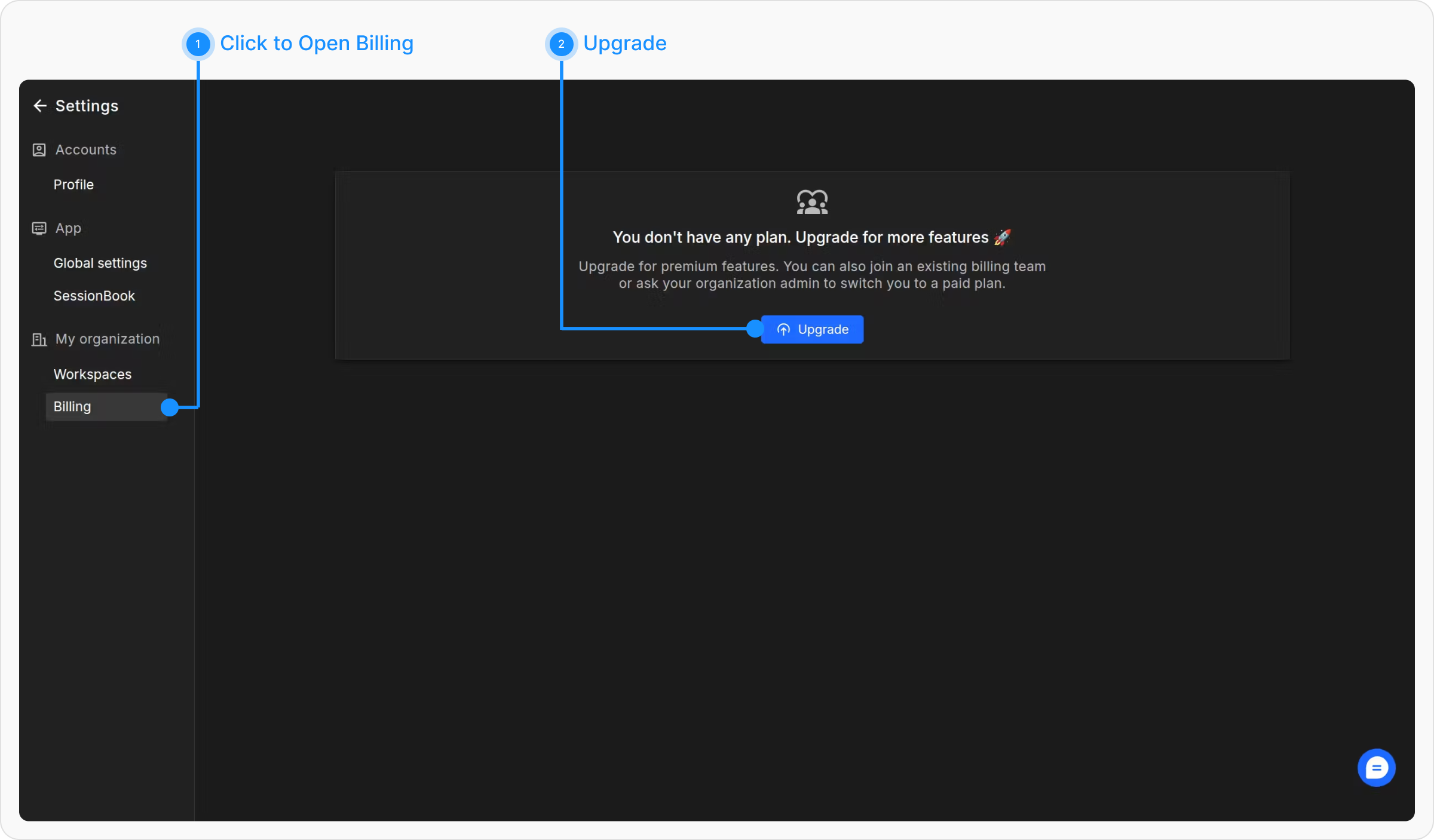
Go to **Settings** and select the **Billing** option.
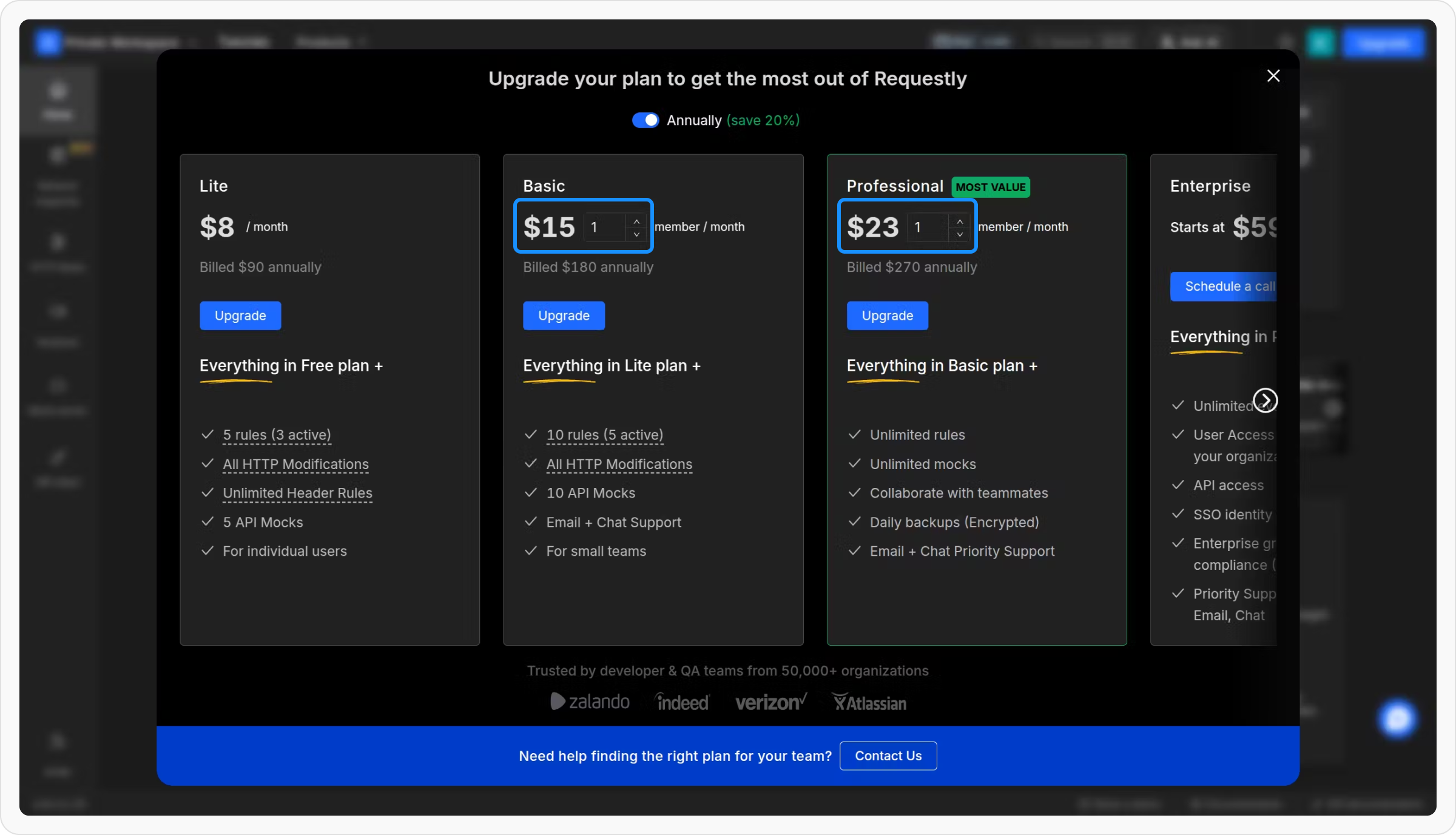
After you open Billing, click the **Upgrade** button to select your plan and begin the process of allocating seats.
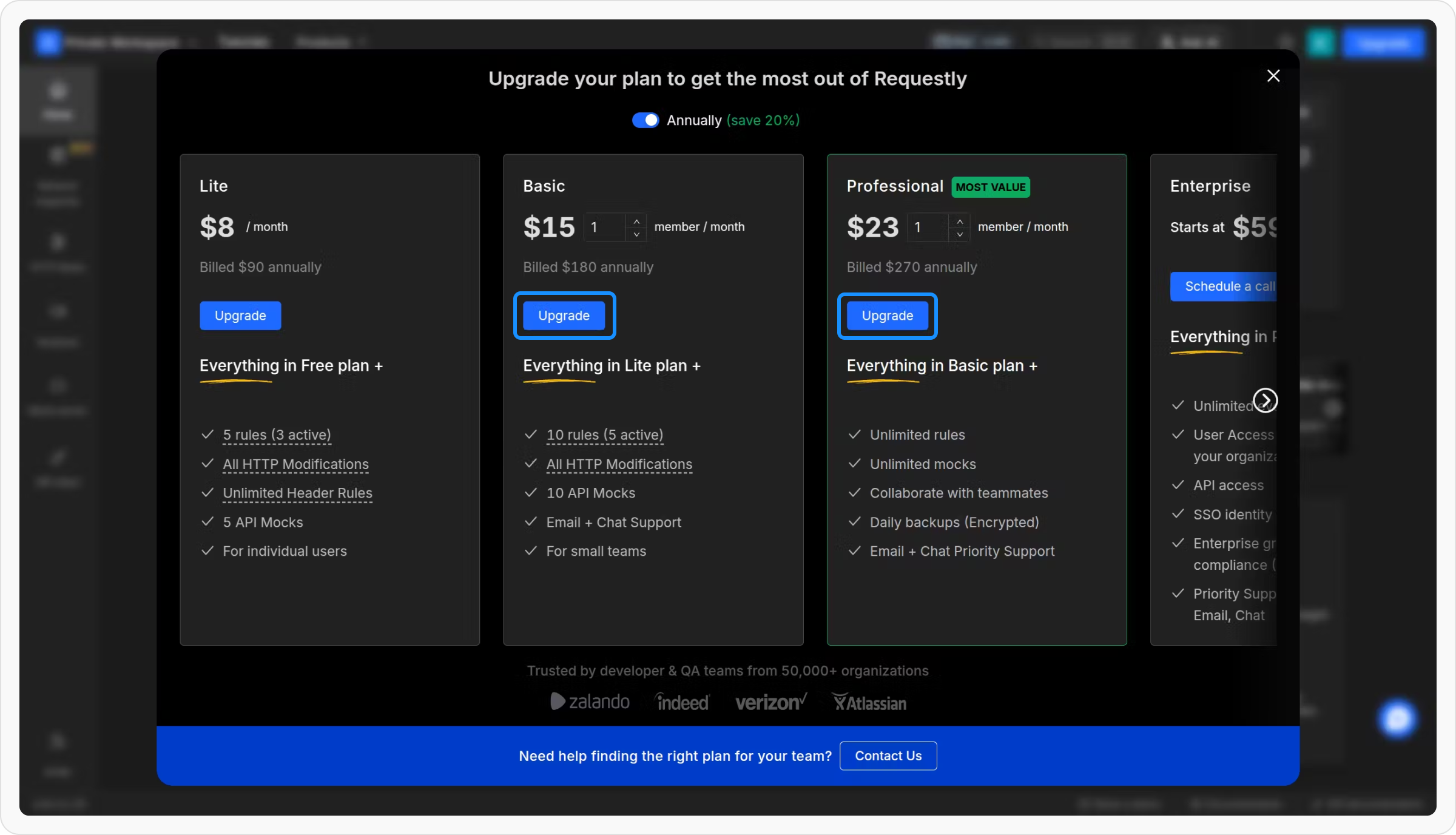
Choose the number of seats you want to allocate for your team. This will determine how many licenses are available for assignment.
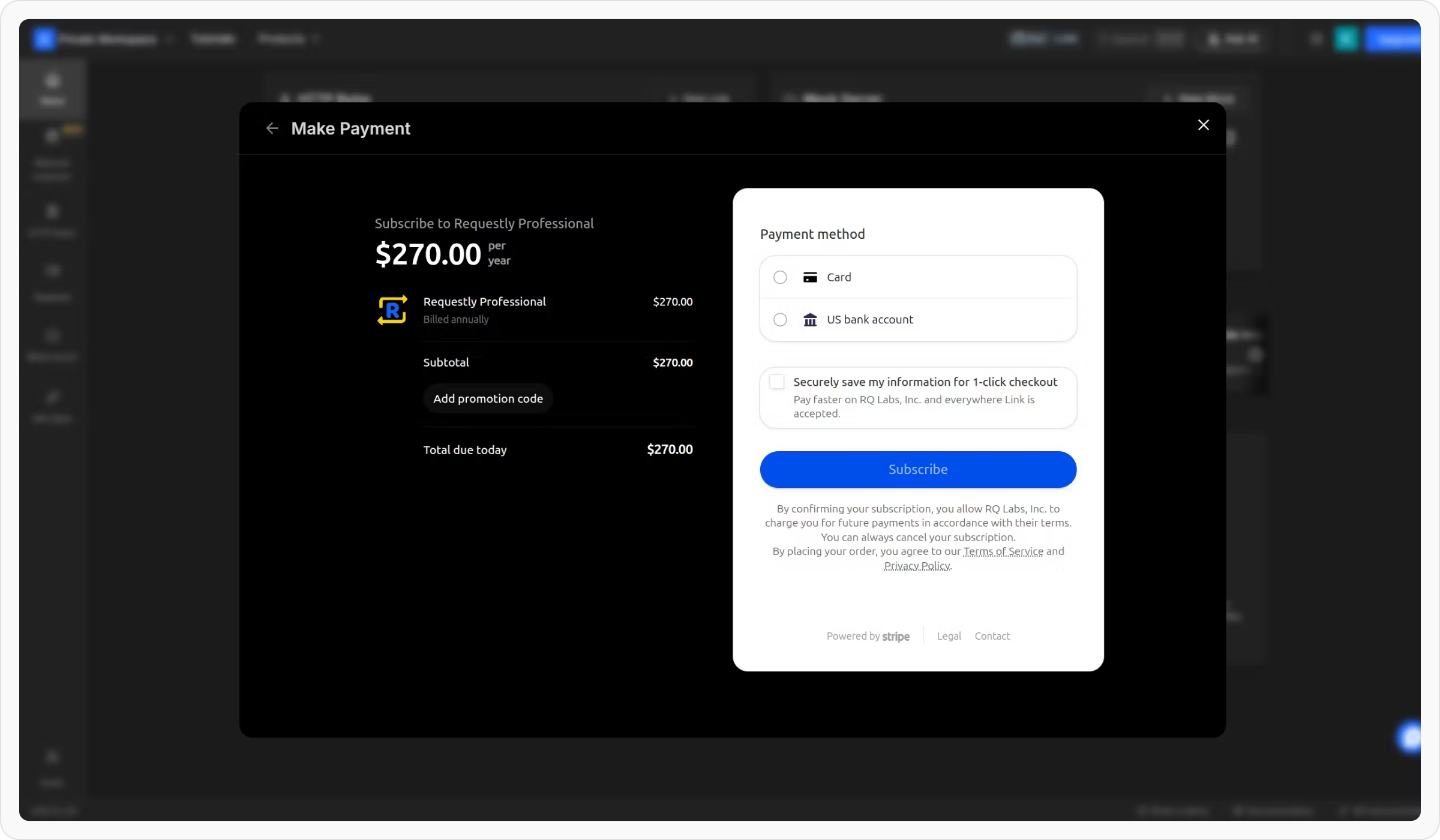
After selecting the number of seats, click the **Upgrade** button to go to the checkout page.
Review your order summary on the checkout page. Enter the required payment details and complete the purchase.
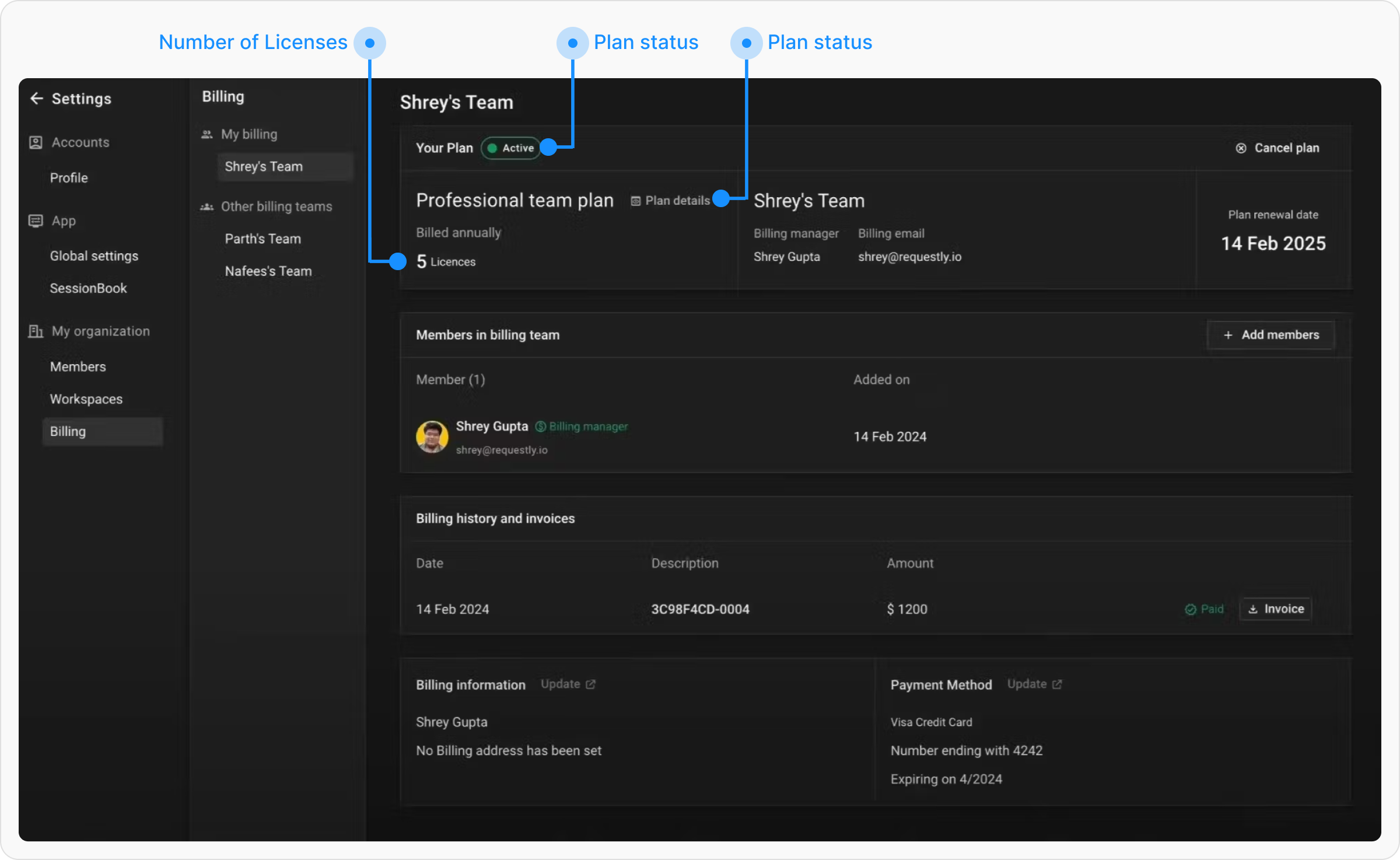
After the checkout is complete, a Billing Team will be created automatically. You’ll be redirected to the **Billing Dashboard**, where you can manage your plan.
In the **Billing Dashboard**, you can view the details of your current plan, including the number of licenses purchased and their status.
***
## Managing Licenses
The **Billing Dashboard** provides a simple way to manage license holders, ensuring your team has seamless access to premium features.
### Assigning a License
Easily allocate licenses to team members who need premium access to tools and features.
Go to **Settings** and select the **Billing** option.
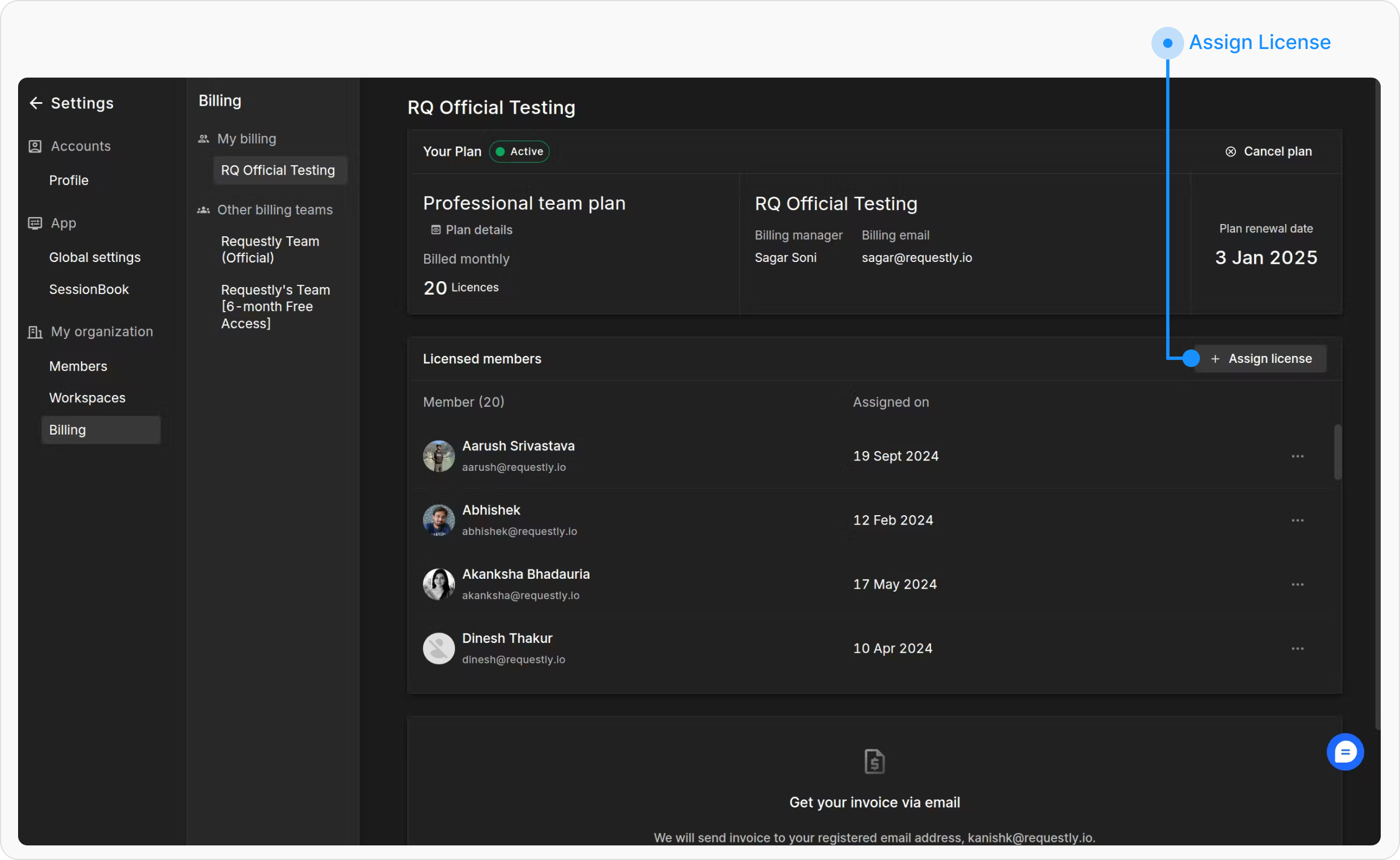
Click the **Assign License** button to begin the allocation process.
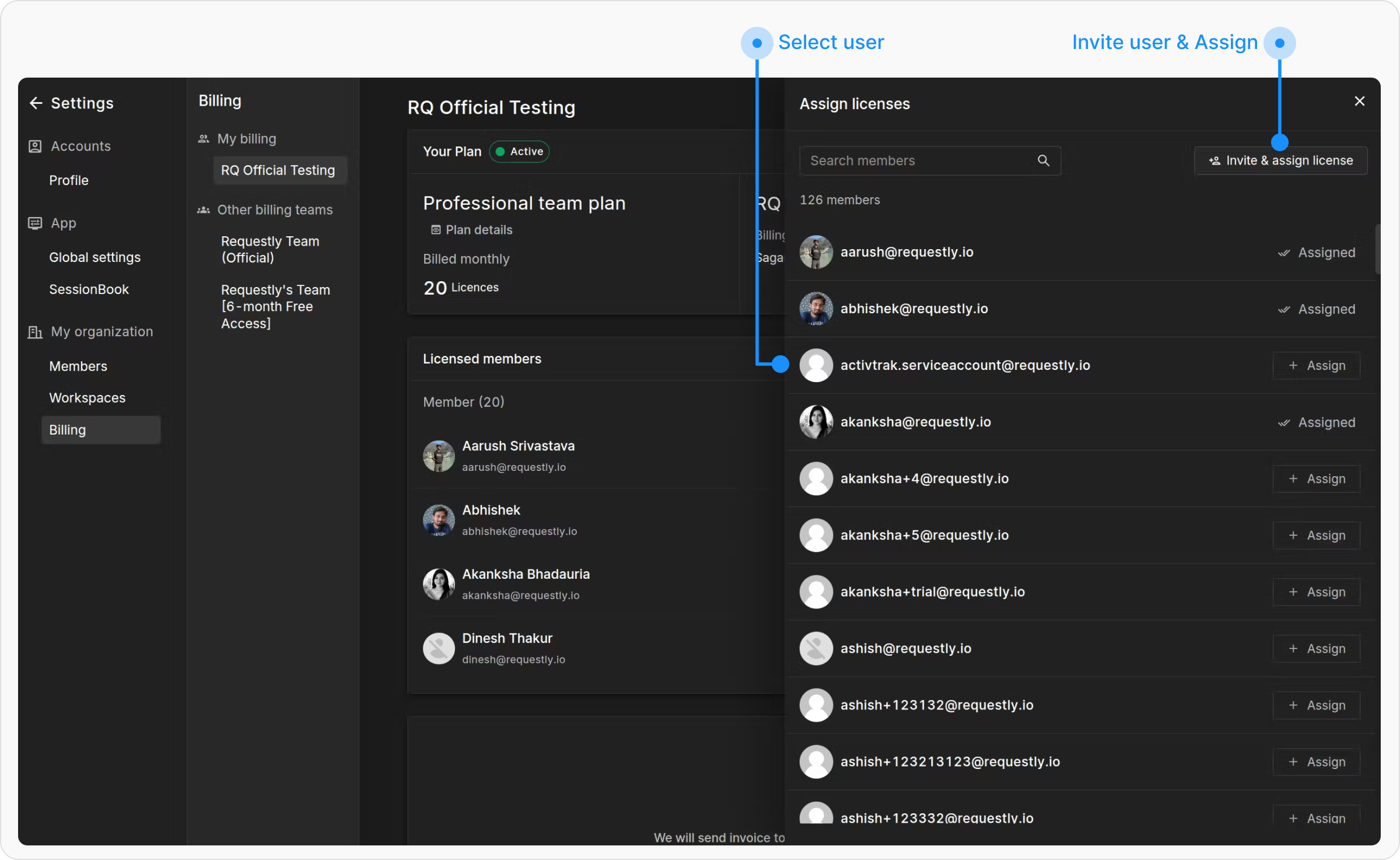
Select a user from the list of available members and click **Assign**.
If the user is not listed, use the **Invite & Assign License** option. Enter the user’s email to send an invitation. Once the user signs up, he will be automatcially assigned a license.
### Revoking a License
Revoking a license ensures that premium access is no longer available to users who no longer need it, helping maintain efficient license usage.
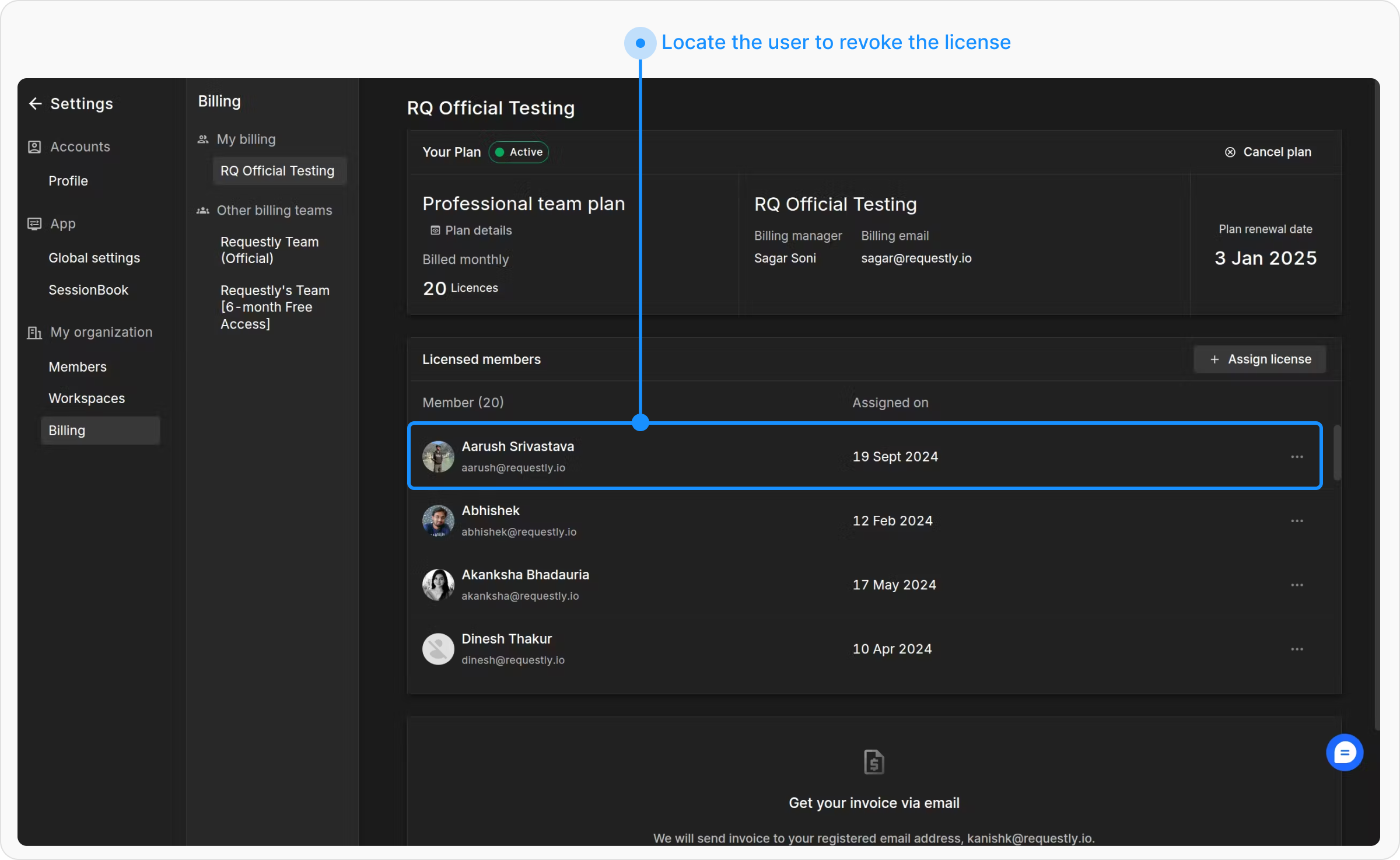
Go to **Settings** and select the **Billing** option.
Find the user whose license you wish to **revoke**.
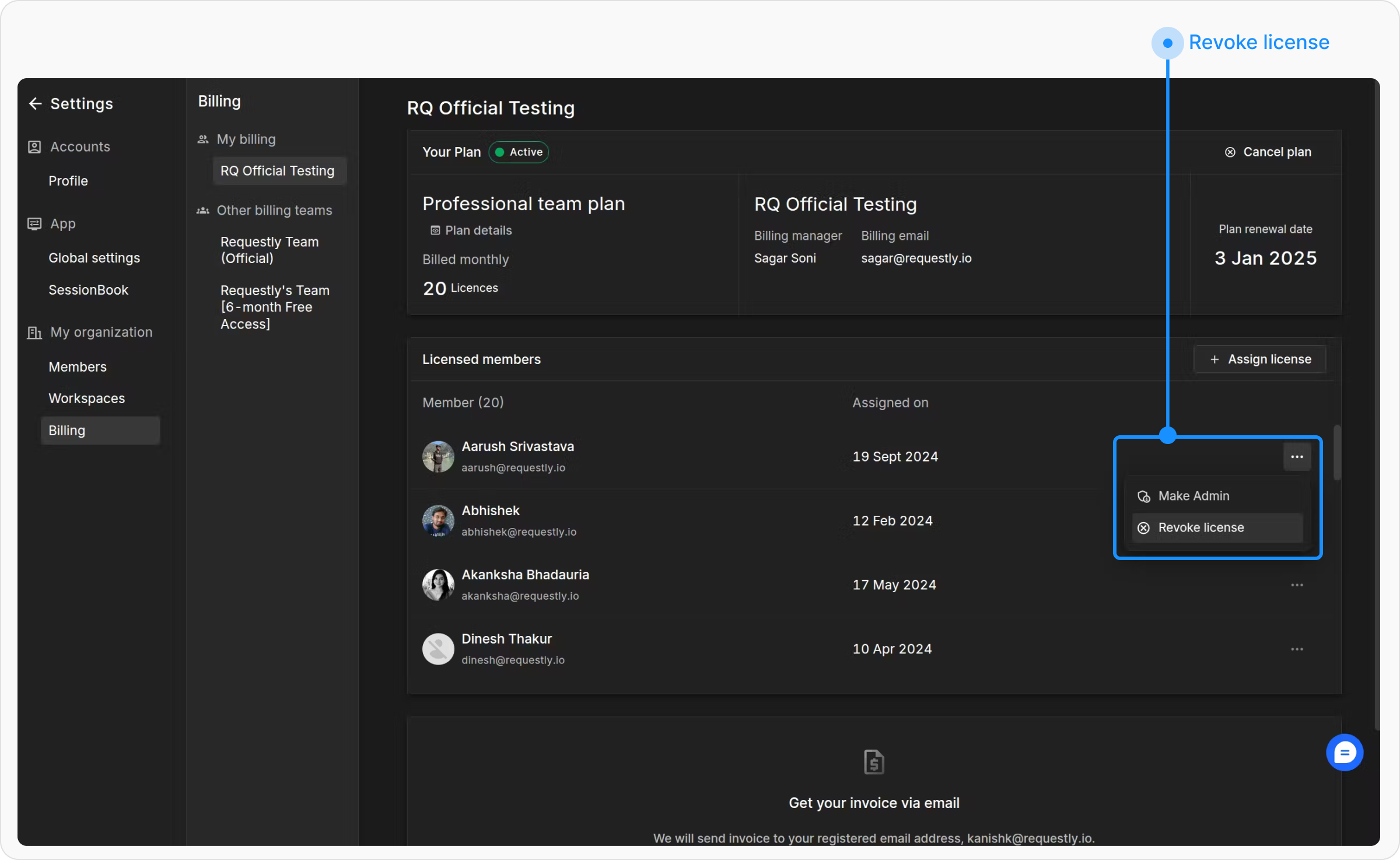
Click the ellipsis(**three-dot**) menu next to their name and select **Revoke License**.
***
## Updating Billing Information
Keep your billing details up to date to avoid service disruptions.
### Modify Billing Information
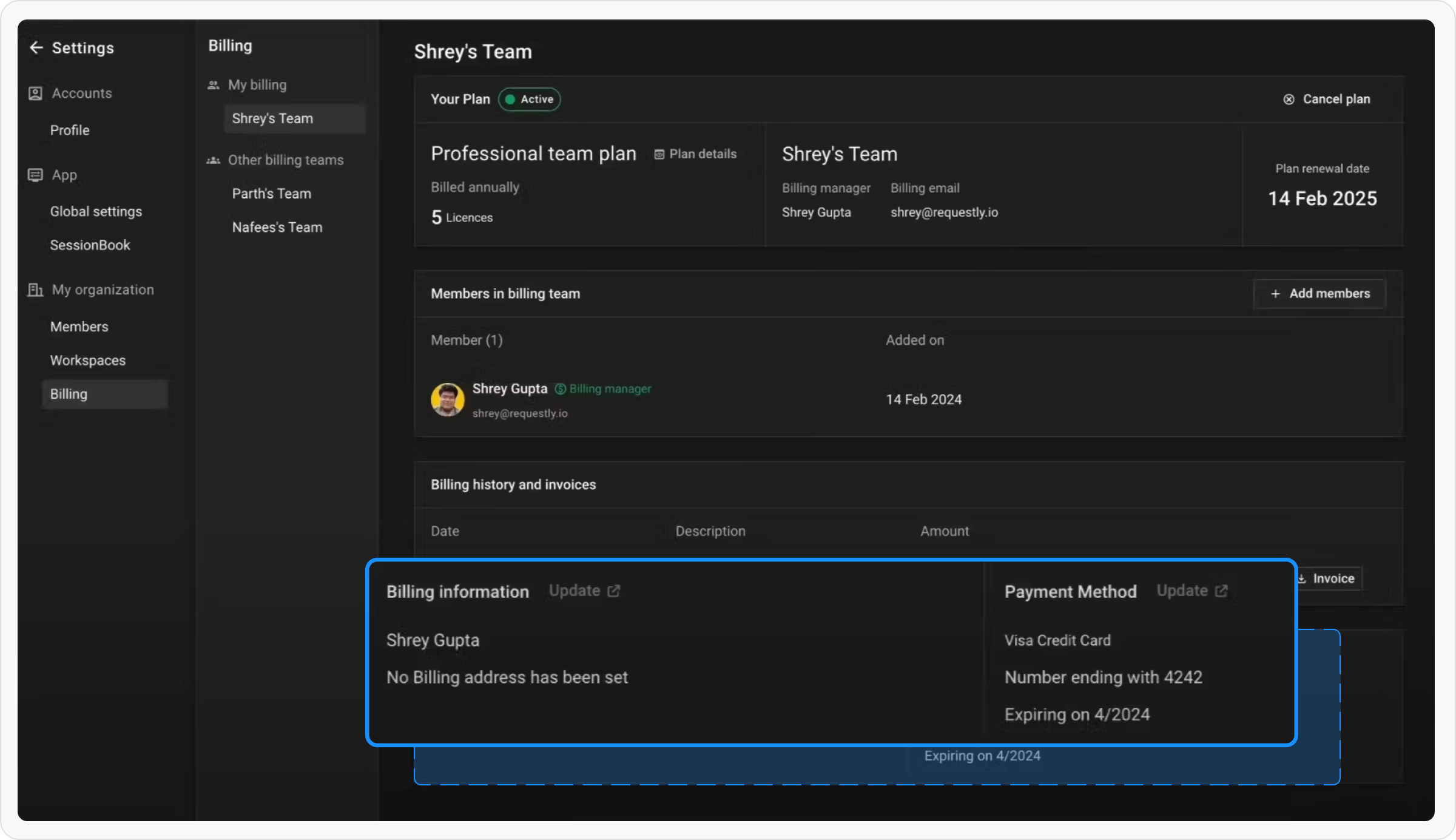
Navigate to the **Billing Information** section. Update your billing addresses and contact details as needed.
### Change Payment Method
Go to the **Payment Methods** section. Add a new payment option or edit existing ones to ensure uninterrupted service.
***
## Billing History and Invoices
Stay on top of your financial records with easy access to billing history and invoices.
### View Billing History
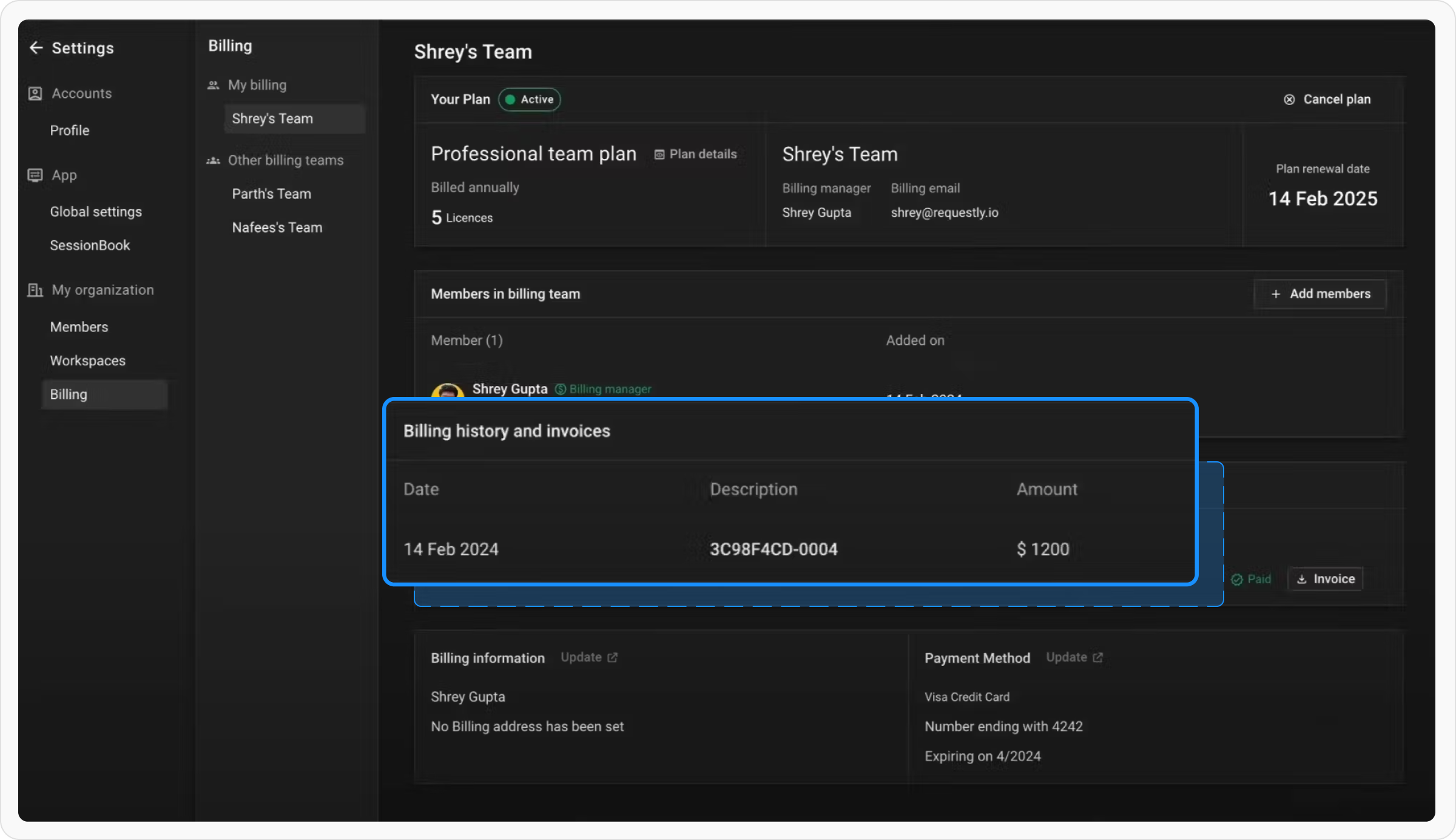
Navigate to the **Billing History** section to review records of past billing activities.
### Download Invoices
Go to the **Invoices** section and click **Download** next to the invoice you wish to save.
### Handle Unpaid Invoices
Locate any outstanding payments in the **Billing Dashboard** and follow the prompts to complete the payment process.
***
### Billing Teams vs. Team Workspaces
* **Billing Teams**: Responsible for managing licenses and billing processes.
* **Team Workspaces**: Enable collaboration by allowing teams to create and manage rules, file servers, shared lists, and session recordings.
 ### Modify Billing Information
Navigate to the **Billing Information** section. Update your billing addresses and contact details as needed.
### Change Payment Method
Go to the **Payment Methods** section. Add a new payment option or edit existing ones to ensure uninterrupted service.
***
## Billing History and Invoices
Stay on top of your financial records with easy access to billing history and invoices.
### Modify Billing Information
Navigate to the **Billing Information** section. Update your billing addresses and contact details as needed.
### Change Payment Method
Go to the **Payment Methods** section. Add a new payment option or edit existing ones to ensure uninterrupted service.
***
## Billing History and Invoices
Stay on top of your financial records with easy access to billing history and invoices.
 ### View Billing History
Navigate to the **Billing History** section to review records of past billing activities.
### Download Invoices
Go to the **Invoices** section and click **Download** next to the invoice you wish to save.
### Handle Unpaid Invoices
Locate any outstanding payments in the **Billing Dashboard** and follow the prompts to complete the payment process.
***
### Billing Teams vs. Team Workspaces
* **Billing Teams**: Responsible for managing licenses and billing processes.
* **Team Workspaces**: Enable collaboration by allowing teams to create and manage rules, file servers, shared lists, and session recordings.
### View Billing History
Navigate to the **Billing History** section to review records of past billing activities.
### Download Invoices
Go to the **Invoices** section and click **Download** next to the invoice you wish to save.
### Handle Unpaid Invoices
Locate any outstanding payments in the **Billing Dashboard** and follow the prompts to complete the payment process.
***
### Billing Teams vs. Team Workspaces
* **Billing Teams**: Responsible for managing licenses and billing processes.
* **Team Workspaces**: Enable collaboration by allowing teams to create and manage rules, file servers, shared lists, and session recordings.