> ## Documentation Index
> Fetch the complete documentation index at: https://requestly-mintlify-changelog-requestly-past-week-38456.mintlify.site/llms.txt
> Use this file to discover all available pages before exploring further.
# Postman
> Learn how to migrate your Postman collections and environment variables to Requestly's API Client.
***
Postman is a popular API development tool widely used for testing and managing APIs. Requestly can import collections and environment files exported from Postman.
### **Export all the workspace data from Postman**
**Step 1**: Click your profile icon in the top-right corner of Postman and select **Settings**.
**Step 2**: Navigate to the **Account** tab and click **Export Data**. It will redirect you to Export data page. Click on **Export data** button.
**Step 3**: Select the data to export (collections, environments, or both) and click **Request Data Export**.
**Step 4**: Check your registered email for exported data, download the ZIP file and extract its contents.
You can also export individual collections and environments from Postman, as explained at the end of this documentation.
Global variables are not automatically exported using this method.\
To use them in Requestly, you need to manually export global variables from Postman and import it into Requestly.
### **Importing into Requestly**
**Step 1**: In Requestly, navigate to the **API Client** section.
**Step 2**: Click the **Import** button located in the sidebar header and choose **Postman** from the import options.
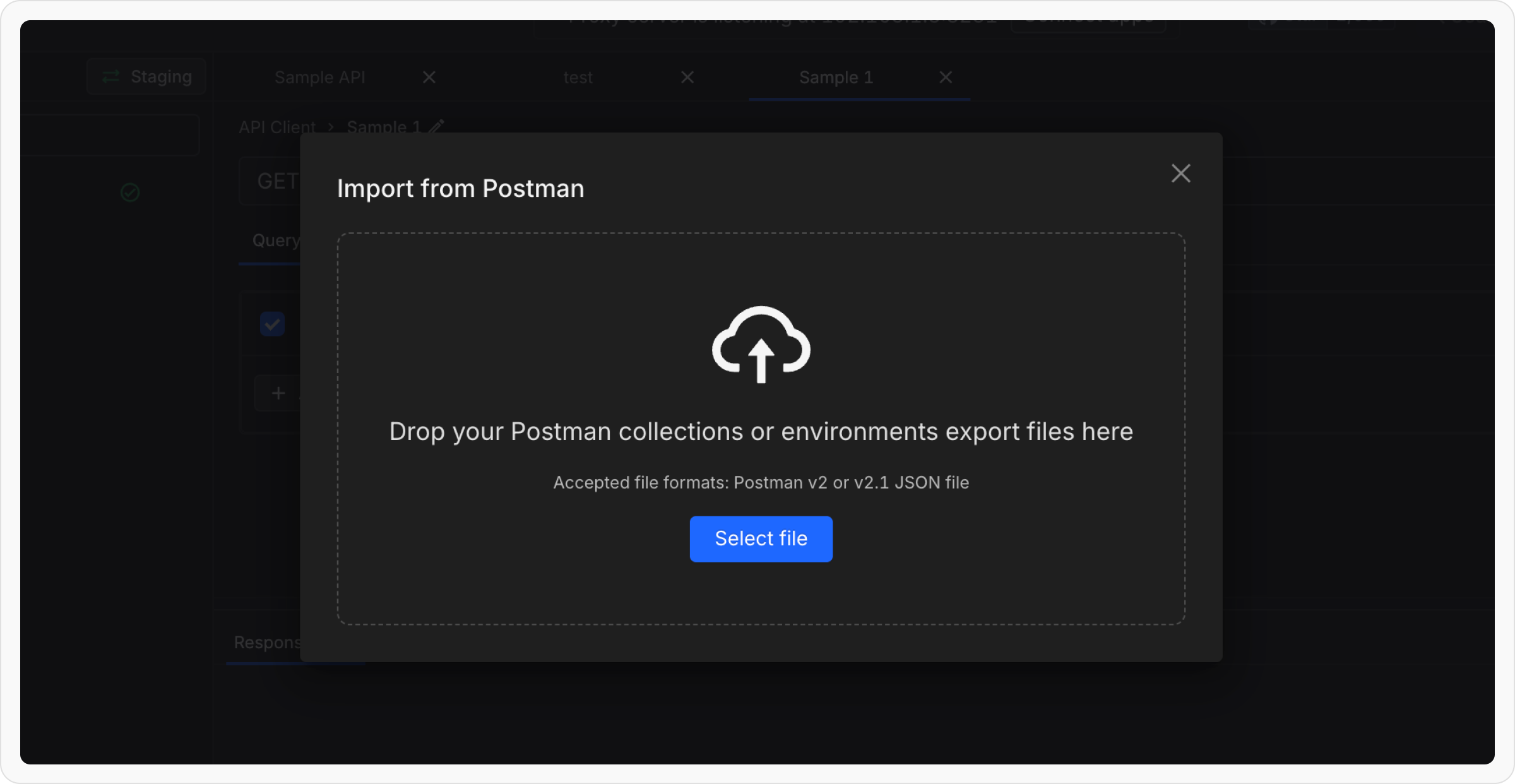
**Step 3**: In the upload modal, select and upload the exported Postman **collection** and **environment** files(Multiple files can be imported at once).
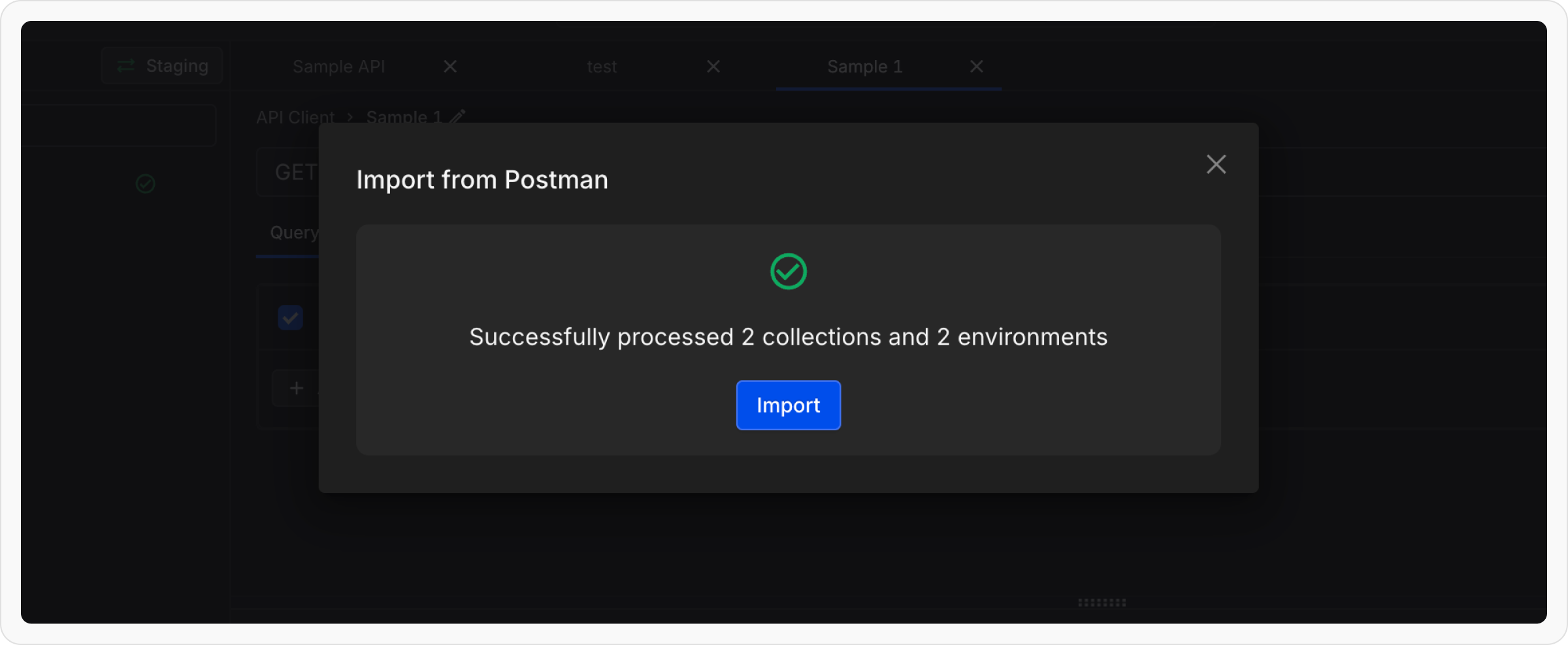
**Step 4**: Once the files are processed, click **Import** to finalize the migration.
### **Exporting individual Collections from Postman**
**Step 1**: Open Postman and navigate to the **Collections** tab in the left sidebar to view your collections.
**Step 2**: Click the ellipsis (`...`) next to the collection you wish to export and select **Export** from the dropdown menu.
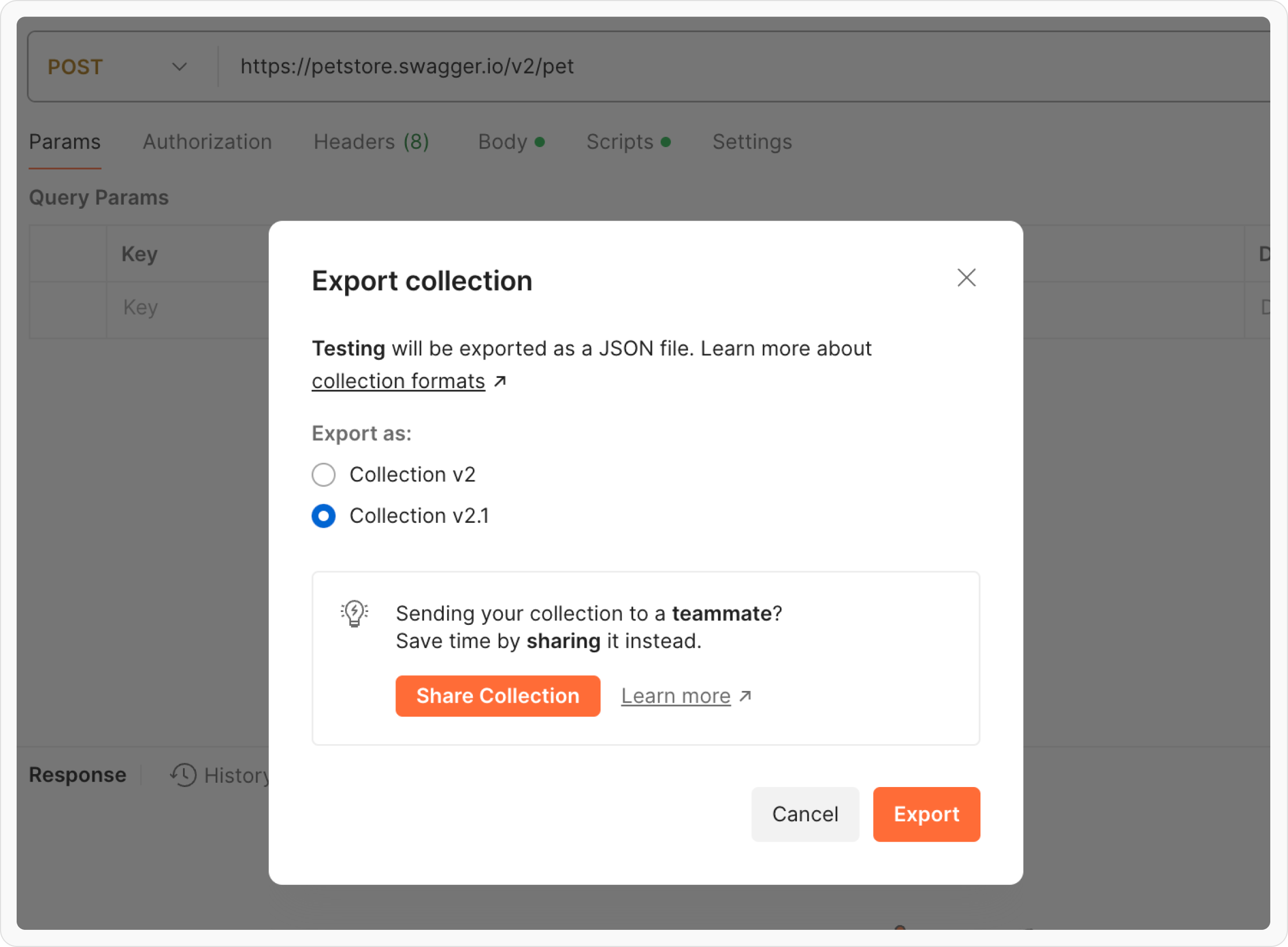
**Step 3**: In the export dialog, select either **Collection v2** or **Collection v2.1**(Requestly supports both) as the export format. Click **Export** and save the file.
**Step 4**: Import using the same steps as explained in **Import into Requestly** section above.
### **Exporting individual Environments from Postman**
**Step 1**: Open Postman and go to the **Environments** tab in the left sidebar to view your environments.
**Step 2**: Click the ellipsis (`...`) next to the environment you wish to export and select **Export**.
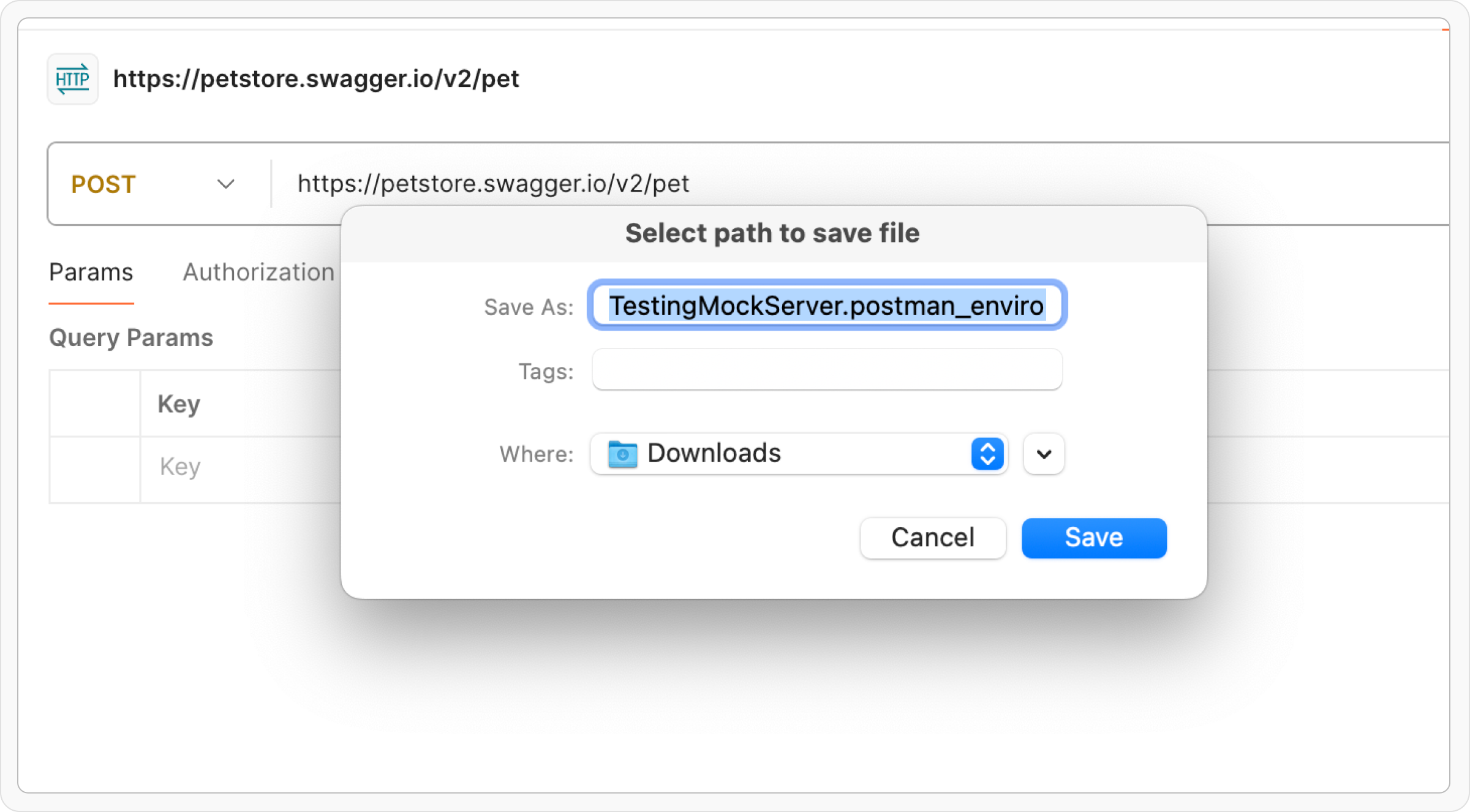
**Step 3**: Choose a location to save the exported environment file and click **Save**.
**Step 4**: Import using the same steps as explained in **Import into Requestly** section above.
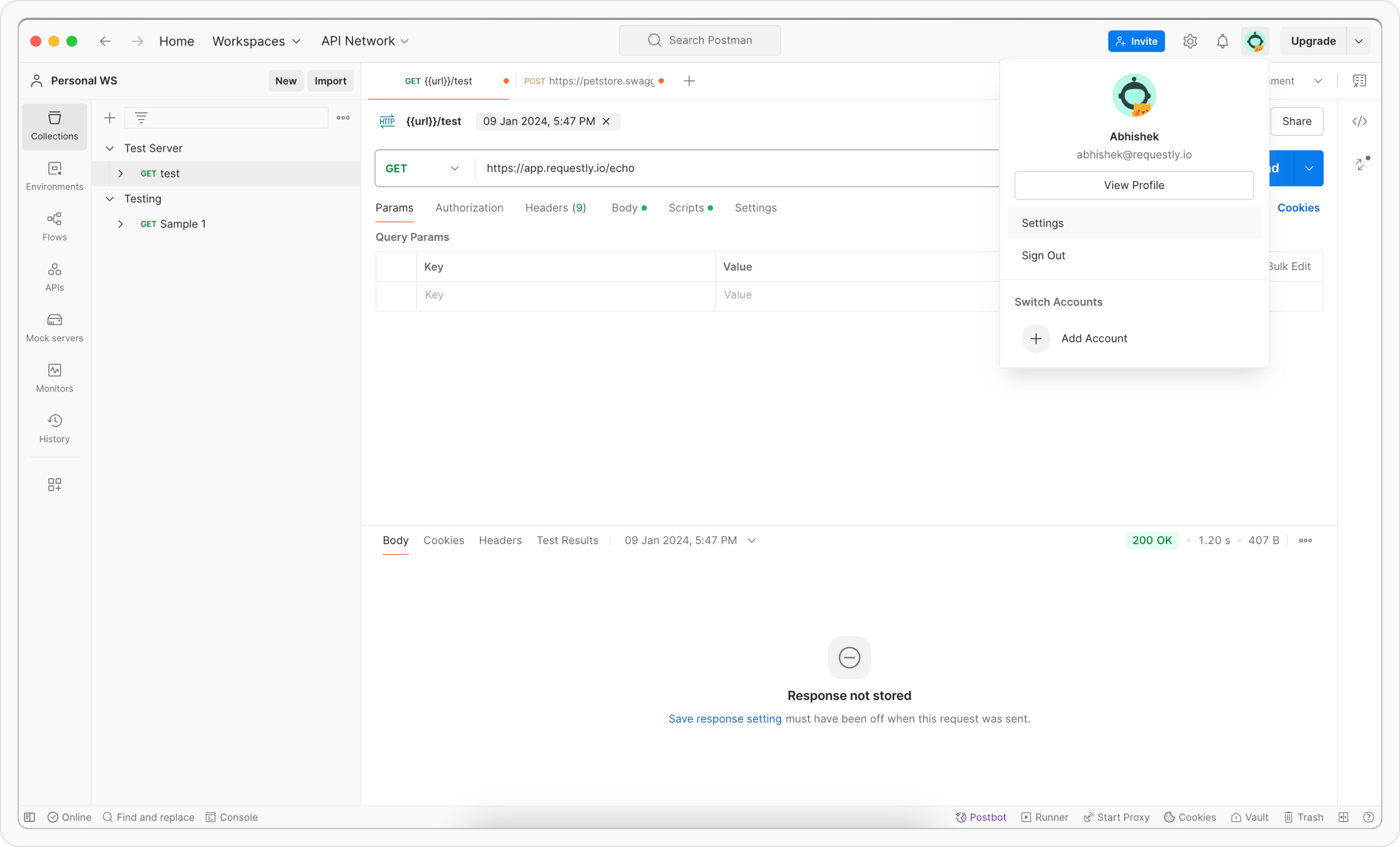 **Step 2**: Navigate to the **Account** tab and click **Export Data**. It will redirect you to Export data page. Click on **Export data** button.
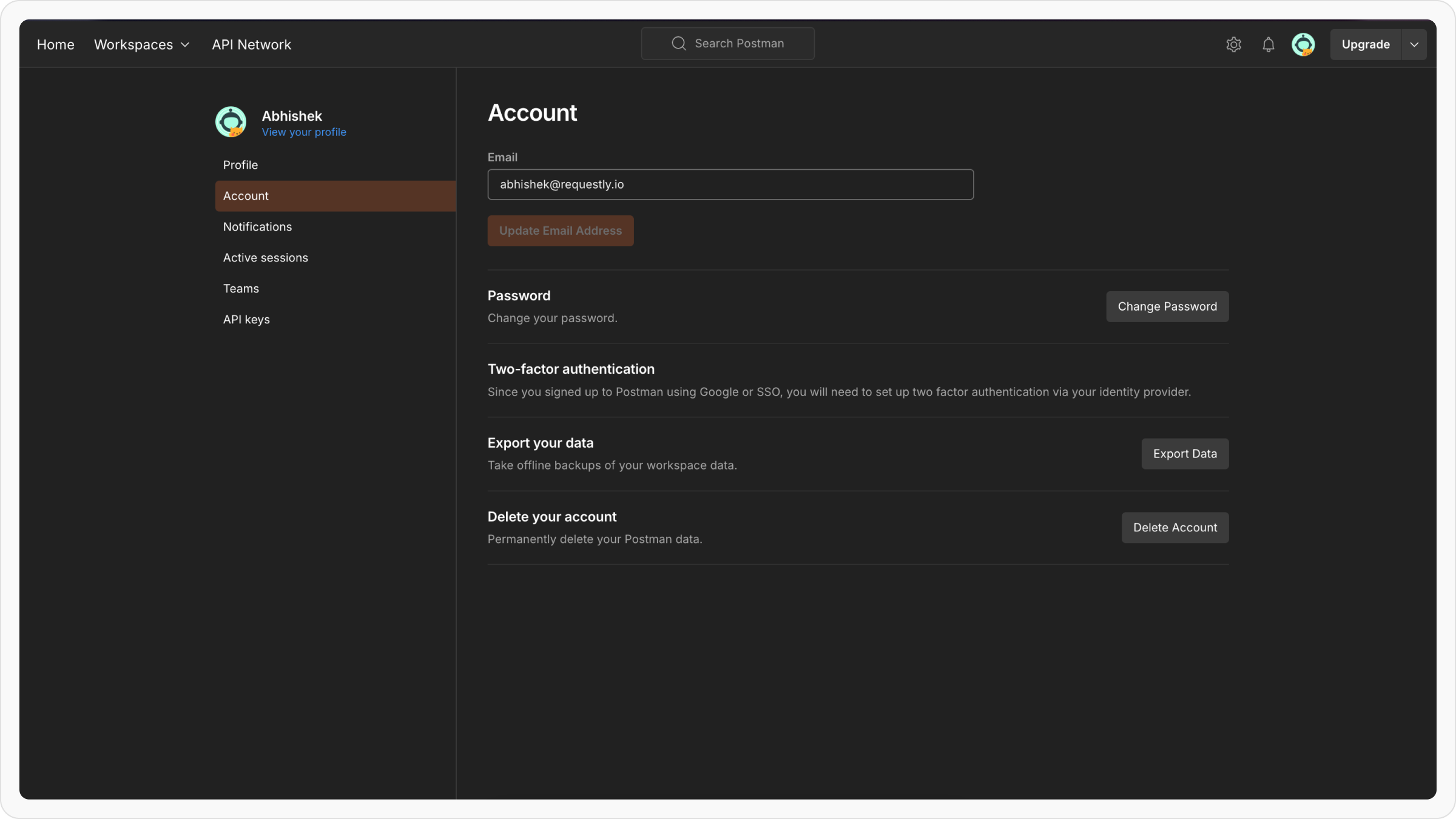 **Step 3**: Select the data to export (collections, environments, or both) and click **Request Data Export**.
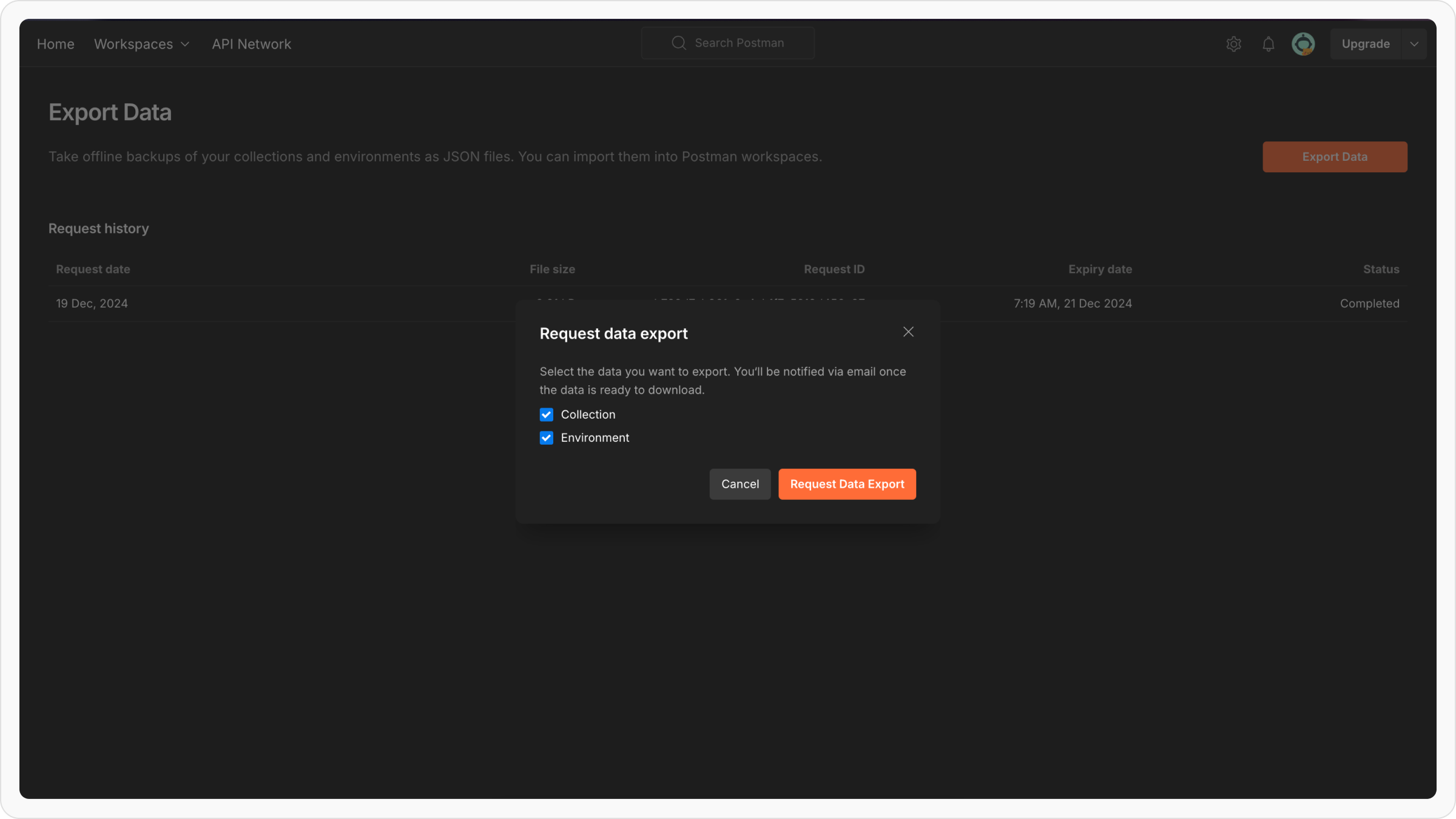 **Step 4**: Check your registered email for exported data, download the ZIP file and extract its contents.
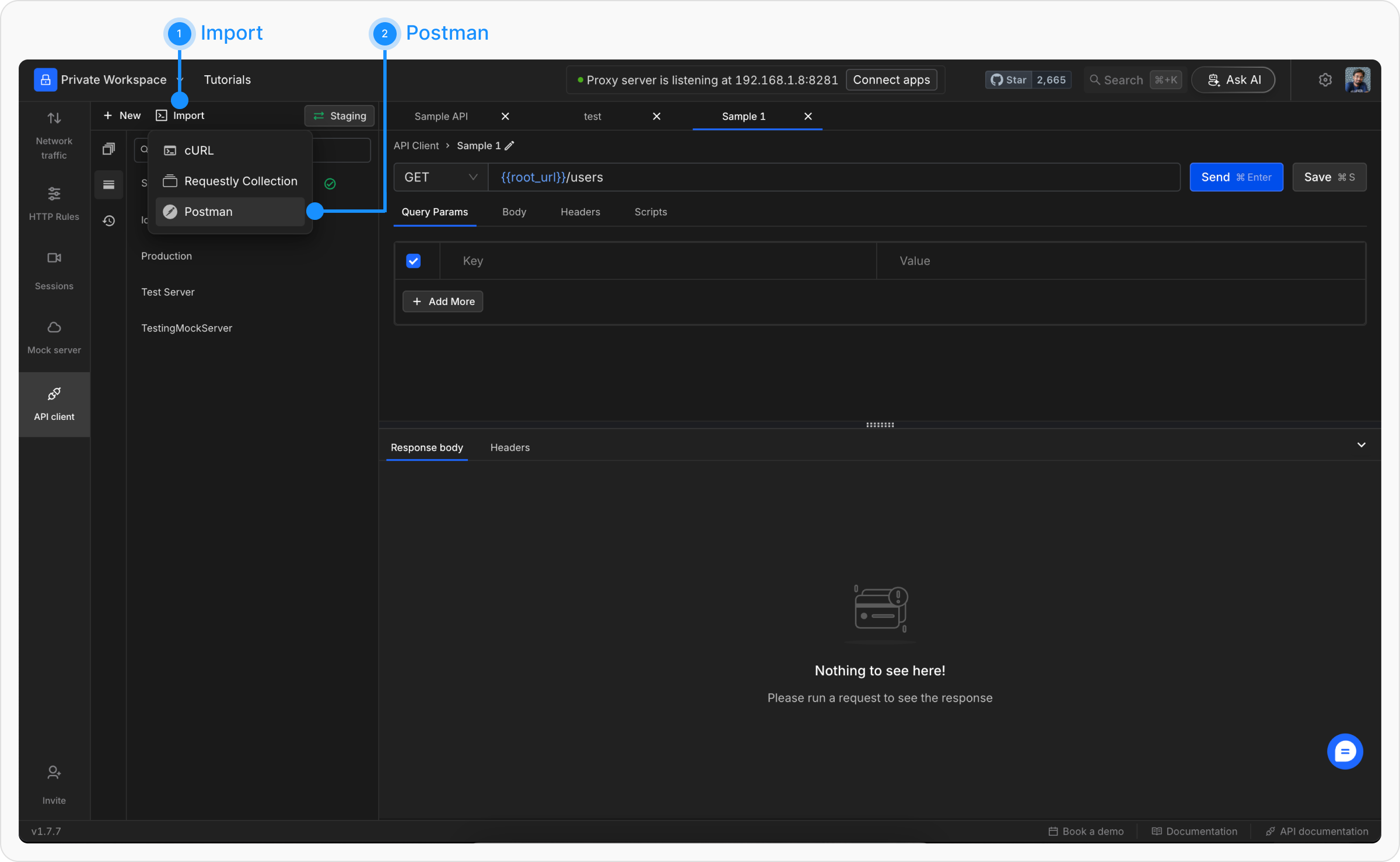 **Step 3**: In the upload modal, select and upload the exported Postman **collection** and **environment** files(Multiple files can be imported at once).
 **Step 4**: Once the files are processed, click **Import** to finalize the migration.
 ### **Exporting individual Collections from Postman**
**Step 1**: Open Postman and navigate to the **Collections** tab in the left sidebar to view your collections.
### **Exporting individual Collections from Postman**
**Step 1**: Open Postman and navigate to the **Collections** tab in the left sidebar to view your collections.
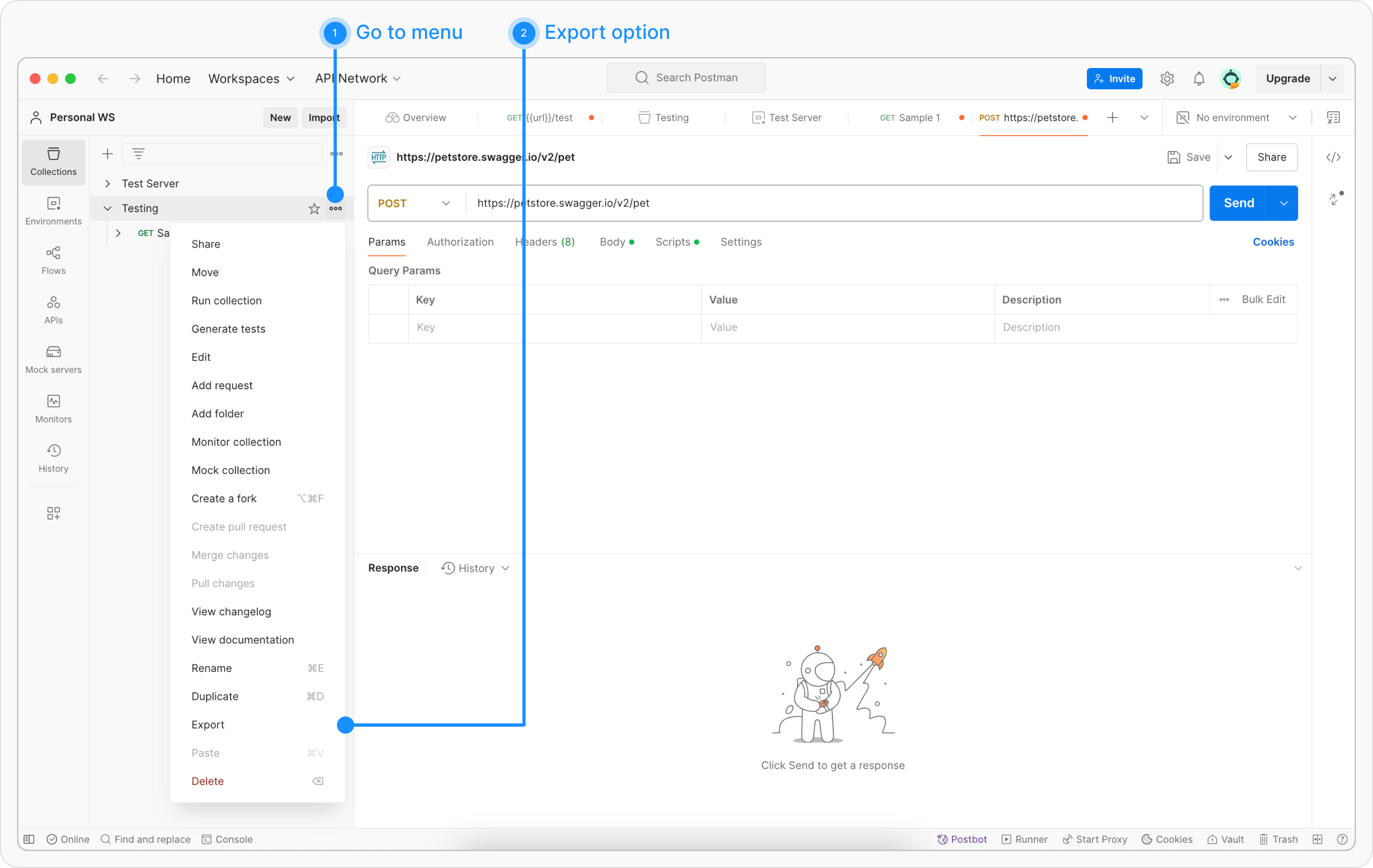 **Step 2**: Click the ellipsis (`...`) next to the collection you wish to export and select **Export** from the dropdown menu.
**Step 3**: In the export dialog, select either **Collection v2** or **Collection v2.1**(Requestly supports both) as the export format. Click **Export** and save the file.
**Step 2**: Click the ellipsis (`...`) next to the collection you wish to export and select **Export** from the dropdown menu.
**Step 3**: In the export dialog, select either **Collection v2** or **Collection v2.1**(Requestly supports both) as the export format. Click **Export** and save the file.
 **Step 4**: Import using the same steps as explained in **Import into Requestly** section above.
### **Exporting individual Environments from Postman**
**Step 1**: Open Postman and go to the **Environments** tab in the left sidebar to view your environments.
**Step 4**: Import using the same steps as explained in **Import into Requestly** section above.
### **Exporting individual Environments from Postman**
**Step 1**: Open Postman and go to the **Environments** tab in the left sidebar to view your environments.
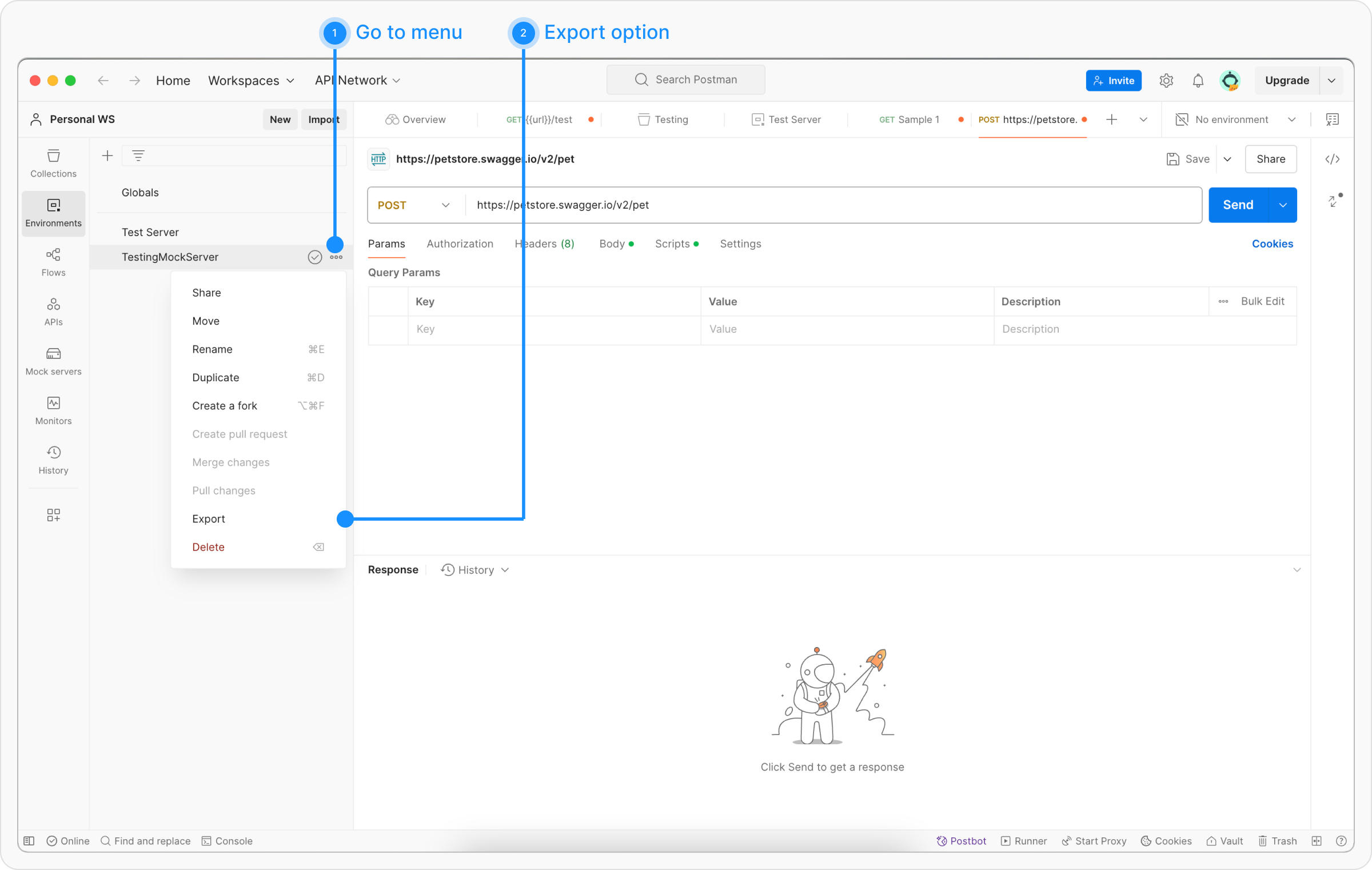 **Step 2**: Click the ellipsis (`...`) next to the environment you wish to export and select **Export**.
**Step 3**: Choose a location to save the exported environment file and click **Save**.
**Step 2**: Click the ellipsis (`...`) next to the environment you wish to export and select **Export**.
**Step 3**: Choose a location to save the exported environment file and click **Save**.
 **Step 4**: Import using the same steps as explained in **Import into Requestly** section above.