> ## Documentation Index
> Fetch the complete documentation index at: https://requestly-mintlify-changelog-requestly-past-week-38456.mintlify.site/llms.txt
> Use this file to discover all available pages before exploring further.
# Bruno
> Learn how to migrate your Bruno collections and environment variables to Requestly's API Client.
Bruno is a powerful API development tool for designing, testing, and managing APIs. Requestly can seamlessly import collections and environment files exported from Bruno, making the transition hassle-free.
### Exporting Collections from Bruno
Launch the Bruno application on your device.
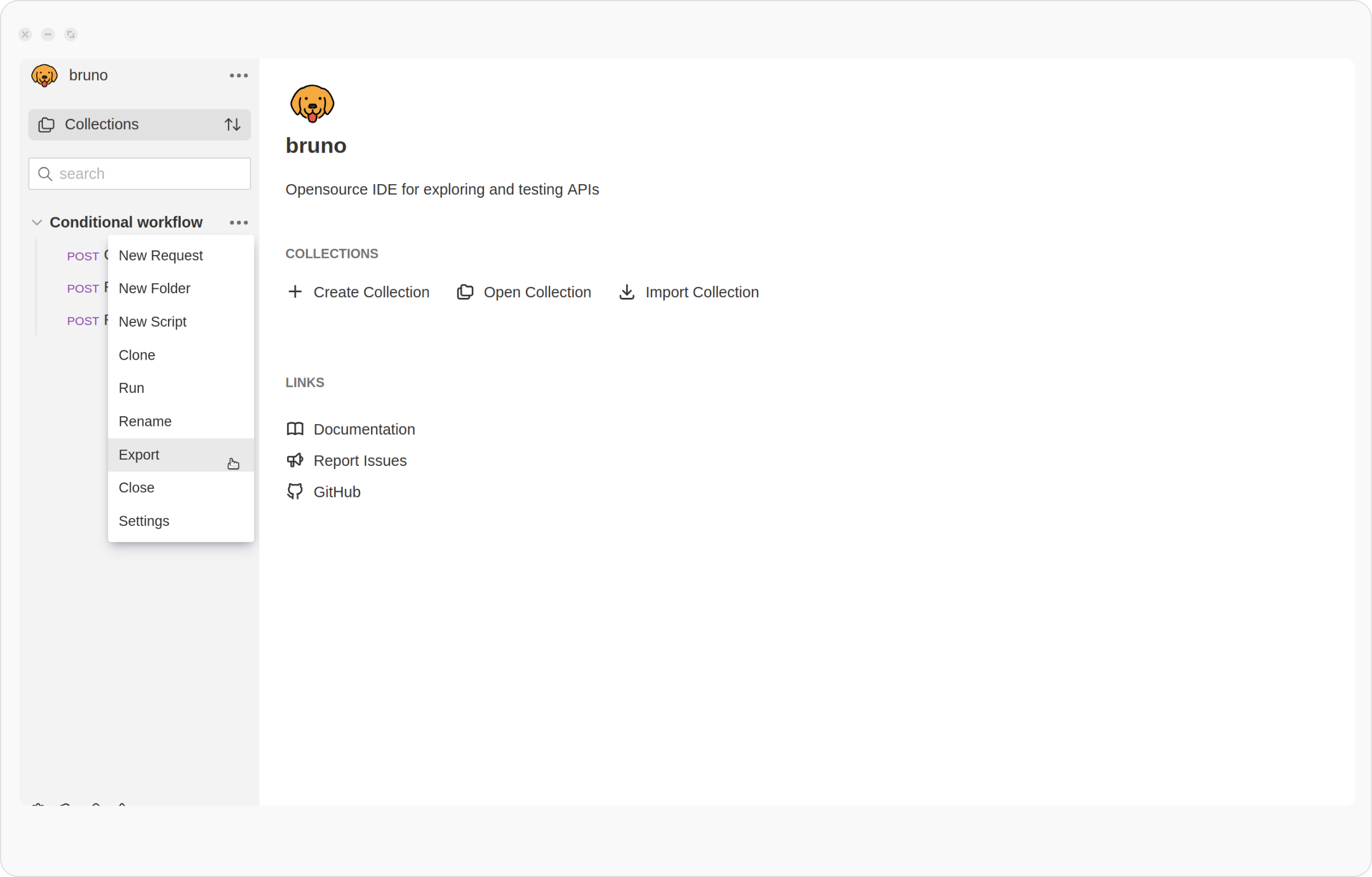
 To export a collection, click the ellipsis (…) next to it and select **Export** from the dropdown menu.
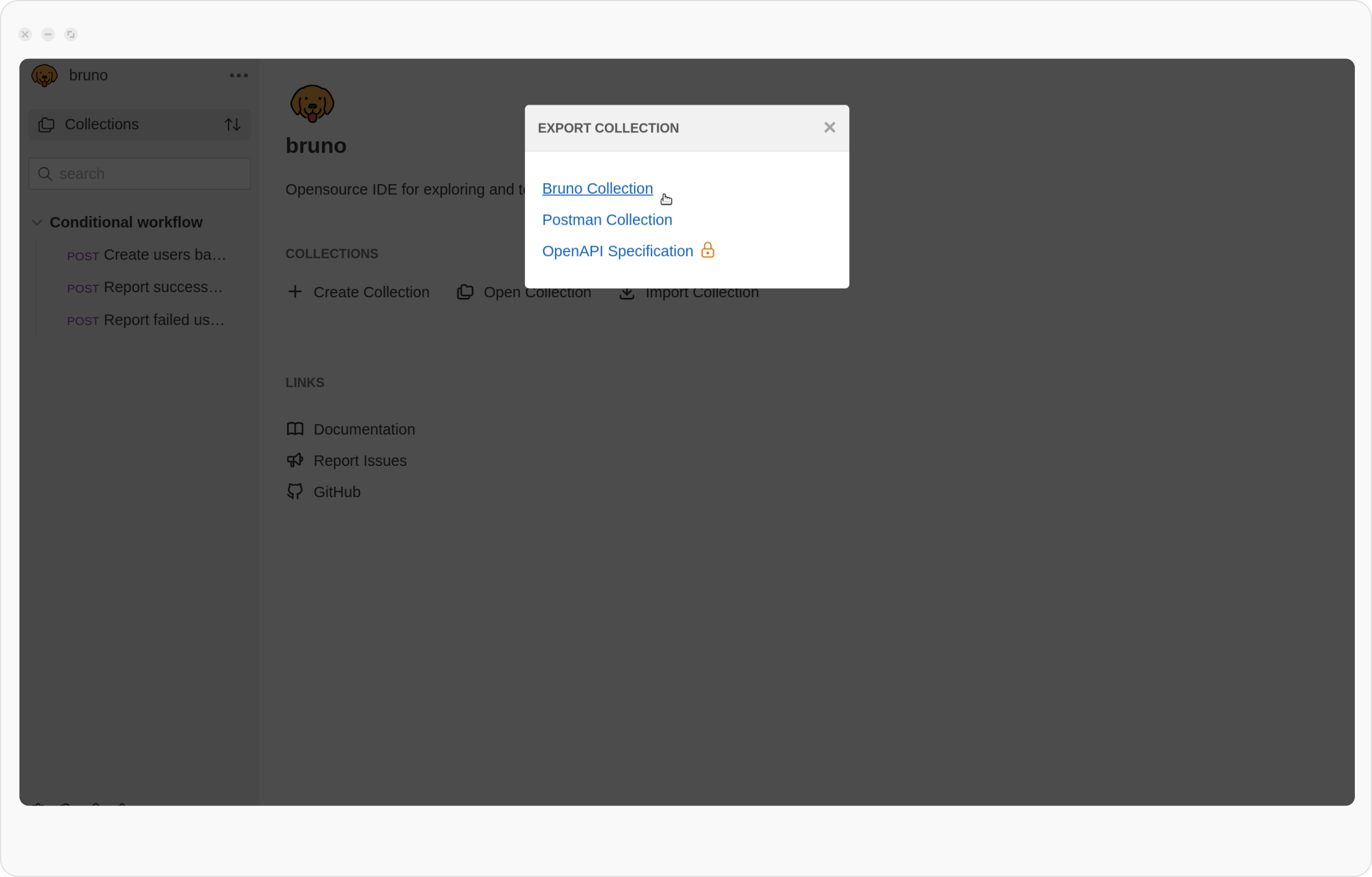
 In the export dialog, select Bruno Collection
In Bruno, when you export a collection as a file, the environments are exported within the same file. There is no need to export environments explicitly.
In the export dialog, select Bruno Collection
In Bruno, when you export a collection as a file, the environments are exported within the same file. There is no need to export environments explicitly.
 Click **Export** and save the file to your preferred location
### Importing into Requestly
In Requestly app, navigate to the **API Client** section.
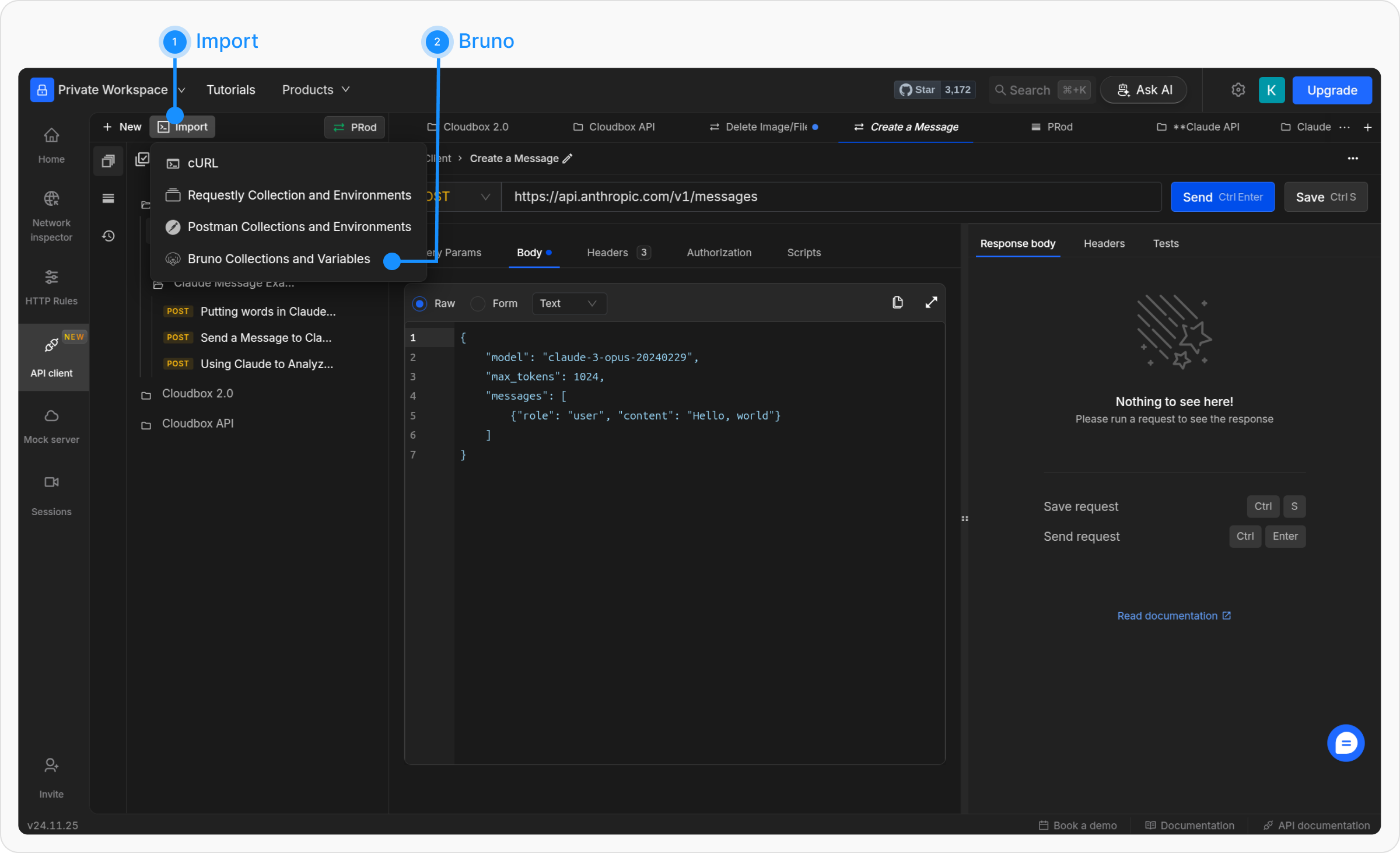
Click the **Import** button in the sidebar header and choose **Bruno** from the import options.
Click **Export** and save the file to your preferred location
### Importing into Requestly
In Requestly app, navigate to the **API Client** section.
Click the **Import** button in the sidebar header and choose **Bruno** from the import options.
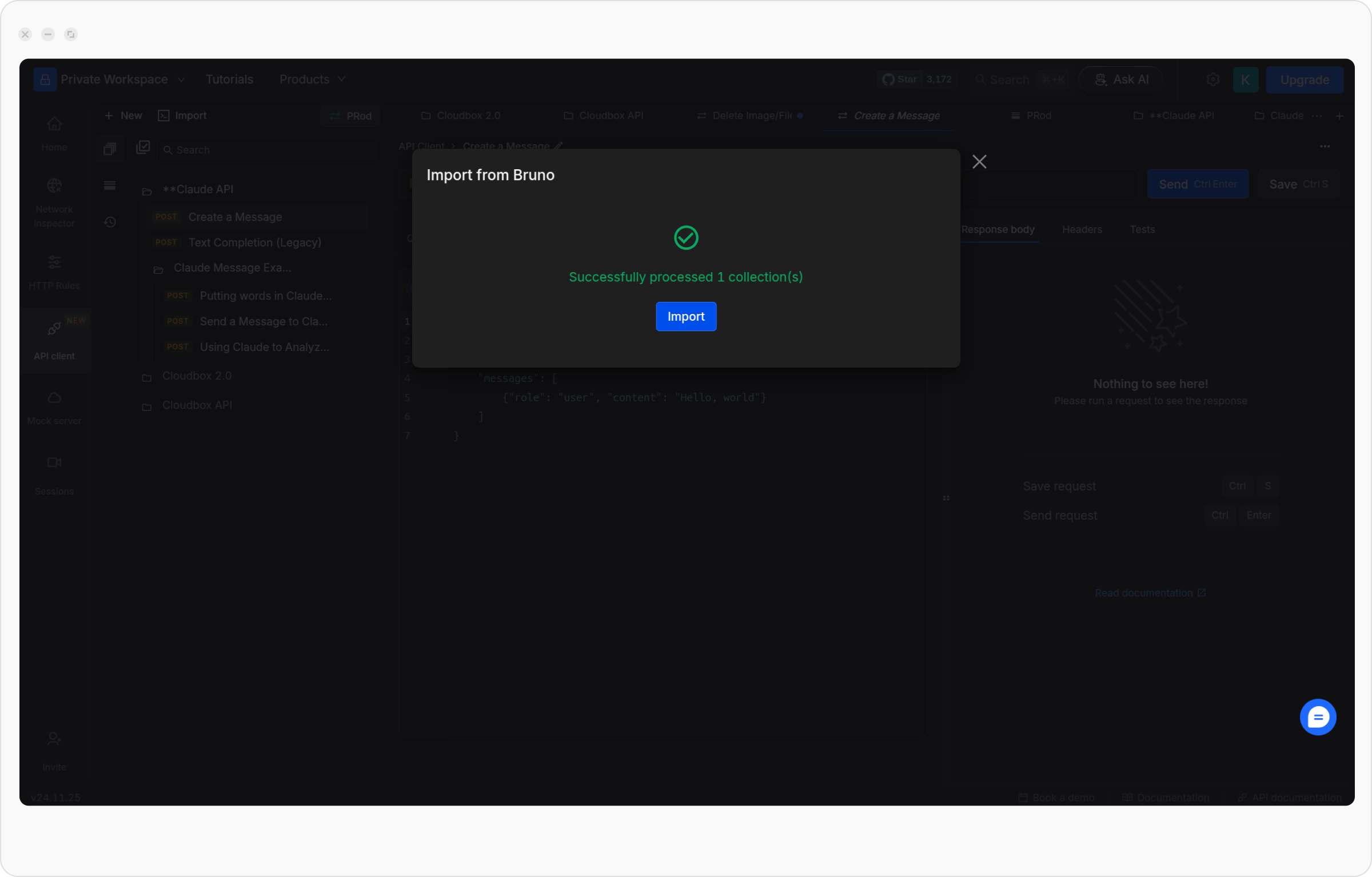
 In the upload modal, select and upload each exported Bruno collection or environment file individually.
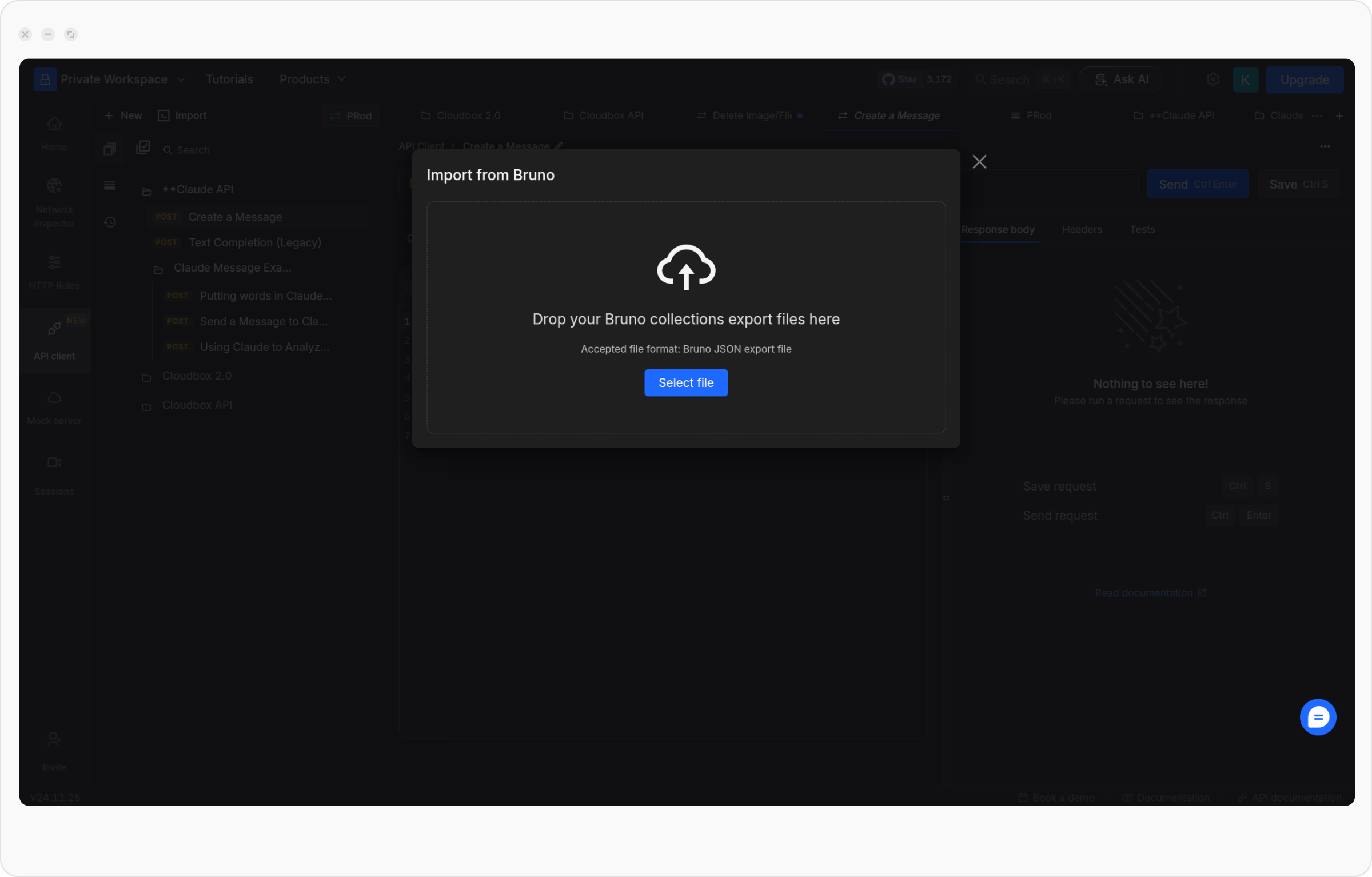 Once the files are processed, click **Import** to finalize each migration.