> ## Documentation Index
> Fetch the complete documentation index at: https://requestly-mintlify-changelog-requestly-past-week-38456.mintlify.site/llms.txt
> Use this file to discover all available pages before exploring further.
# Pause/Resume Requestly
> Learn how to temporarily pause and resume Requestly rules to test your website’s original behavior without interference.
***
Requestly provides an easy way to intercept and modify web requests, but there are instances when you might want to pause its functionality temporarily. This document outlines how to pause and resume Requestly to test your website's original behavior without interference from active Requestly rules.
## Pausing Requestly
To temporarily stop Requestly from intercepting and modifying web requests, follow these steps:
Locate and click the Requestly icon in your browser’s toolbar to open the menu.
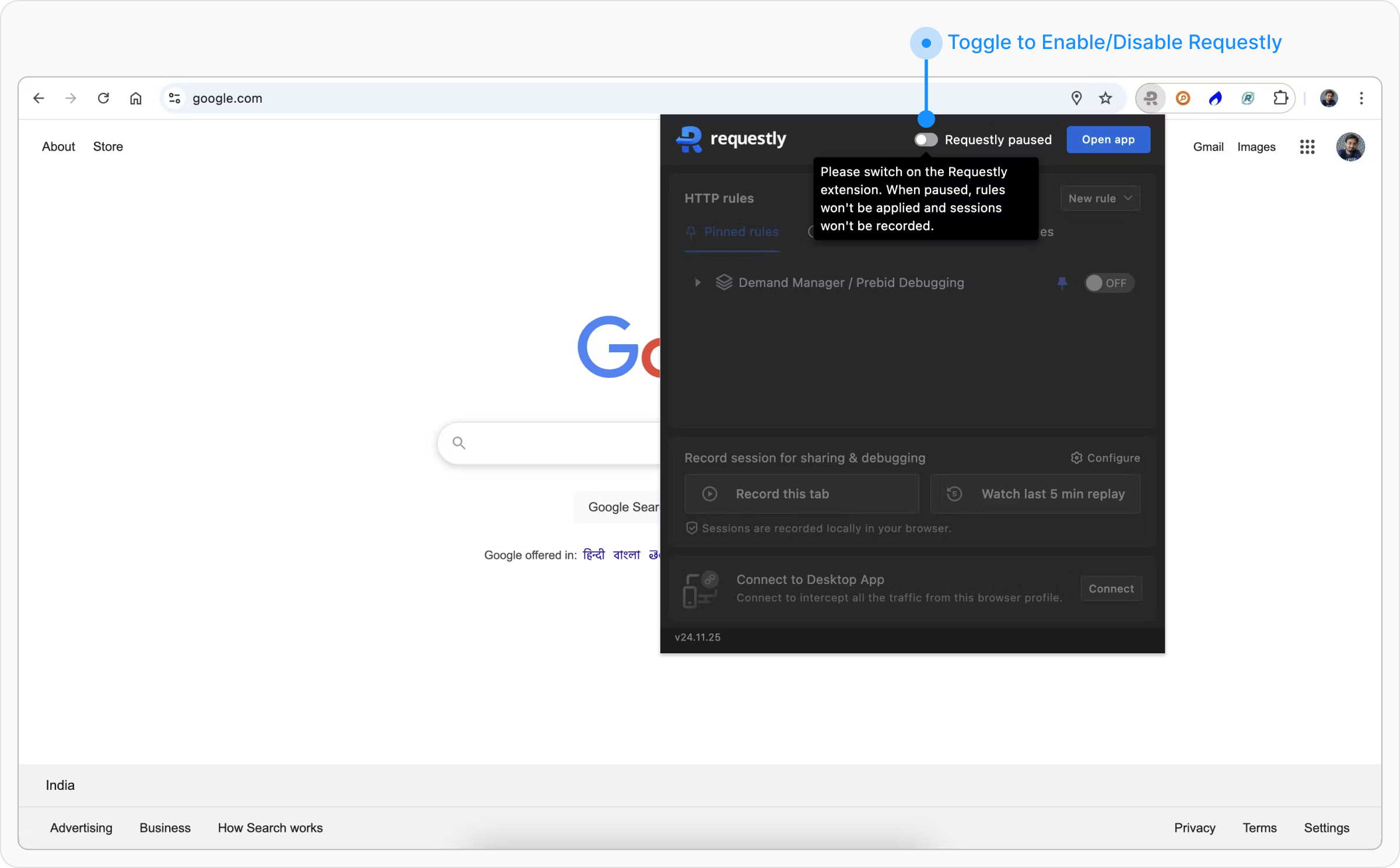
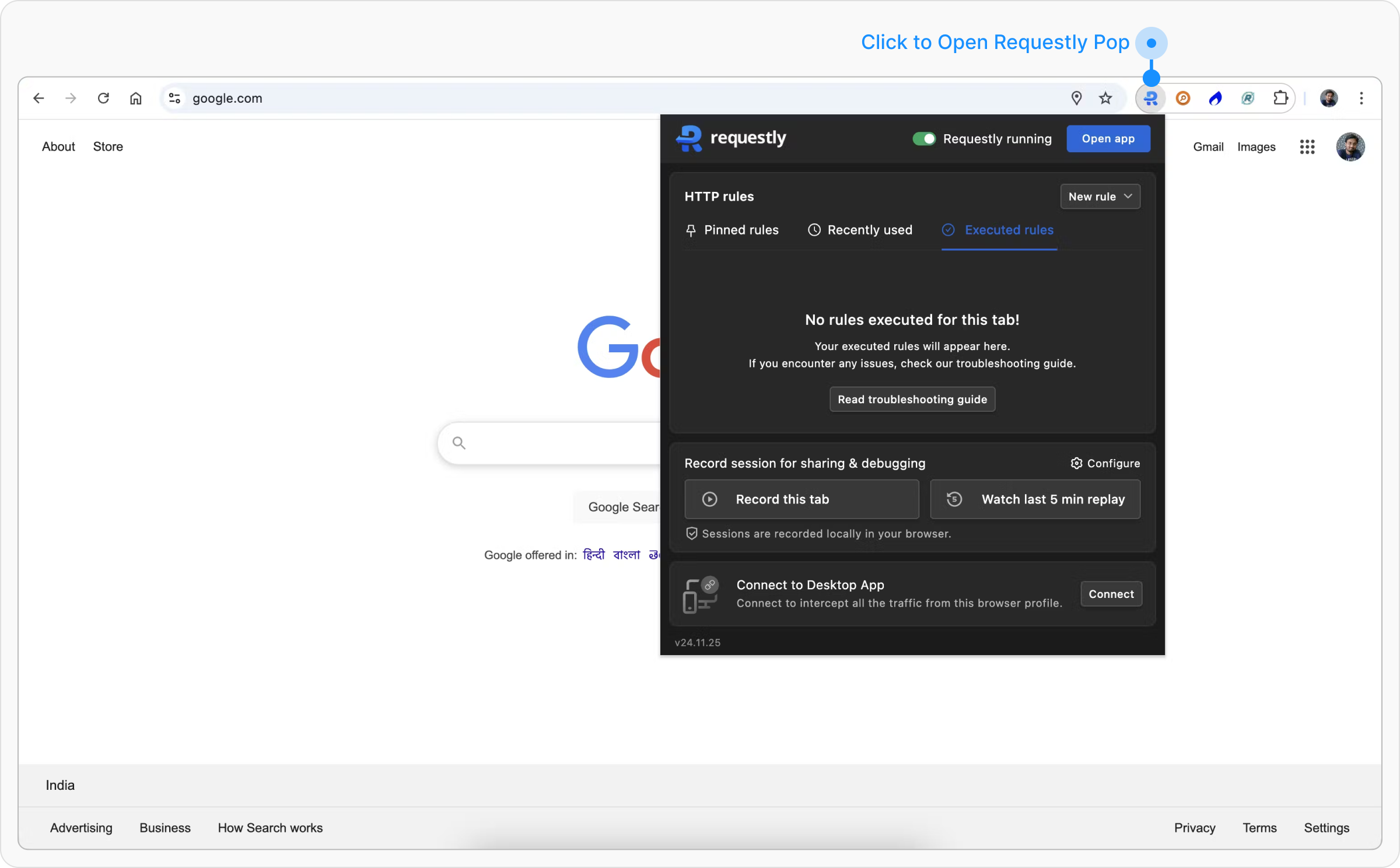 Find the toggle labeled "Requestly running." Click it to deactivate Requestly. The label will change to "Requestly paused," indicating that Requestly is now inactive and no rules are being applied.
 ## Resuming Requestly
To re-enable Requestly and allow its rules to intercept and modify requests again, follow these steps:
Locate and click the Requestly icon in your browser’s toolbar to open the menu.
## Resuming Requestly
To re-enable Requestly and allow its rules to intercept and modify requests again, follow these steps:
Locate and click the Requestly icon in your browser’s toolbar to open the menu.
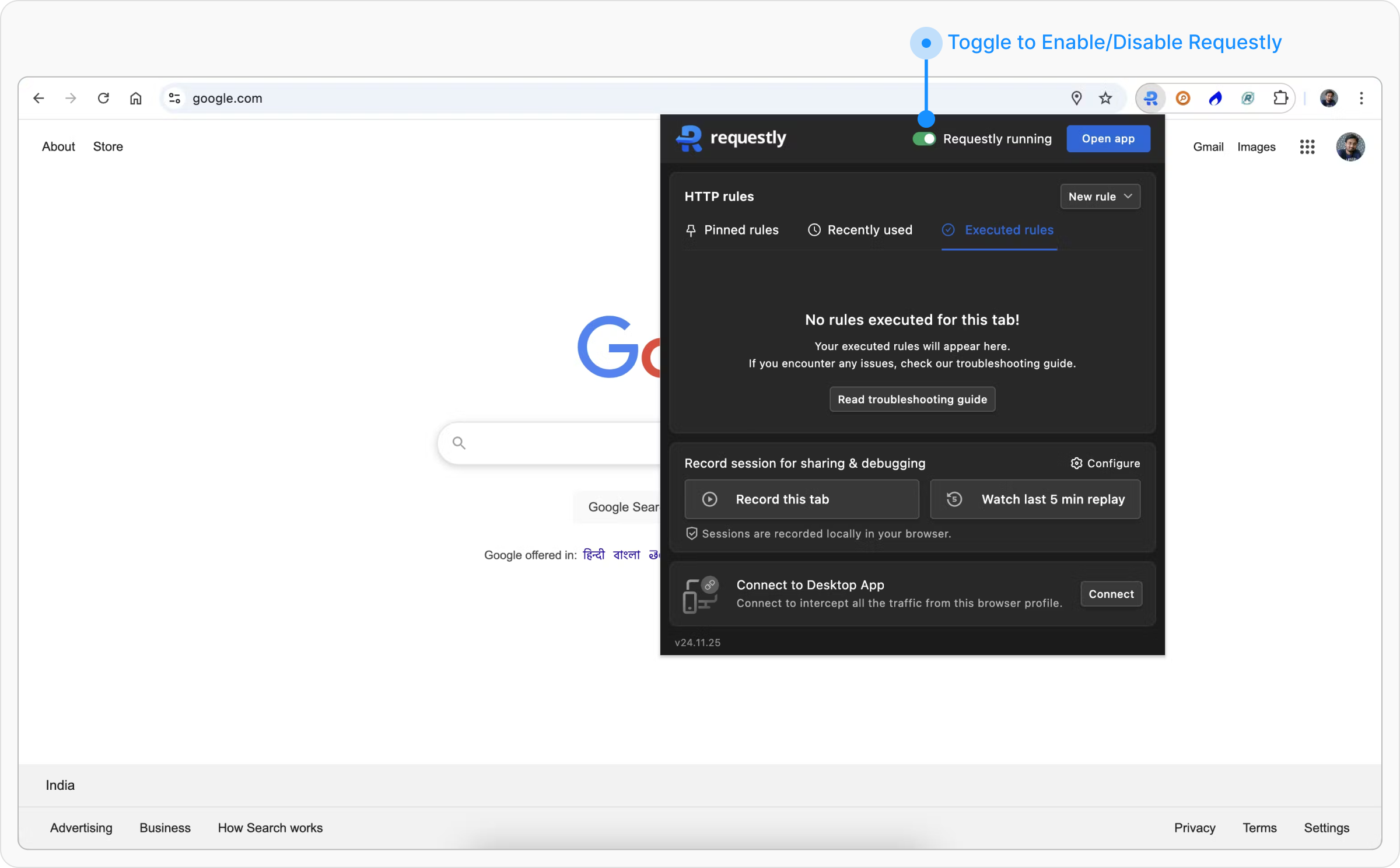
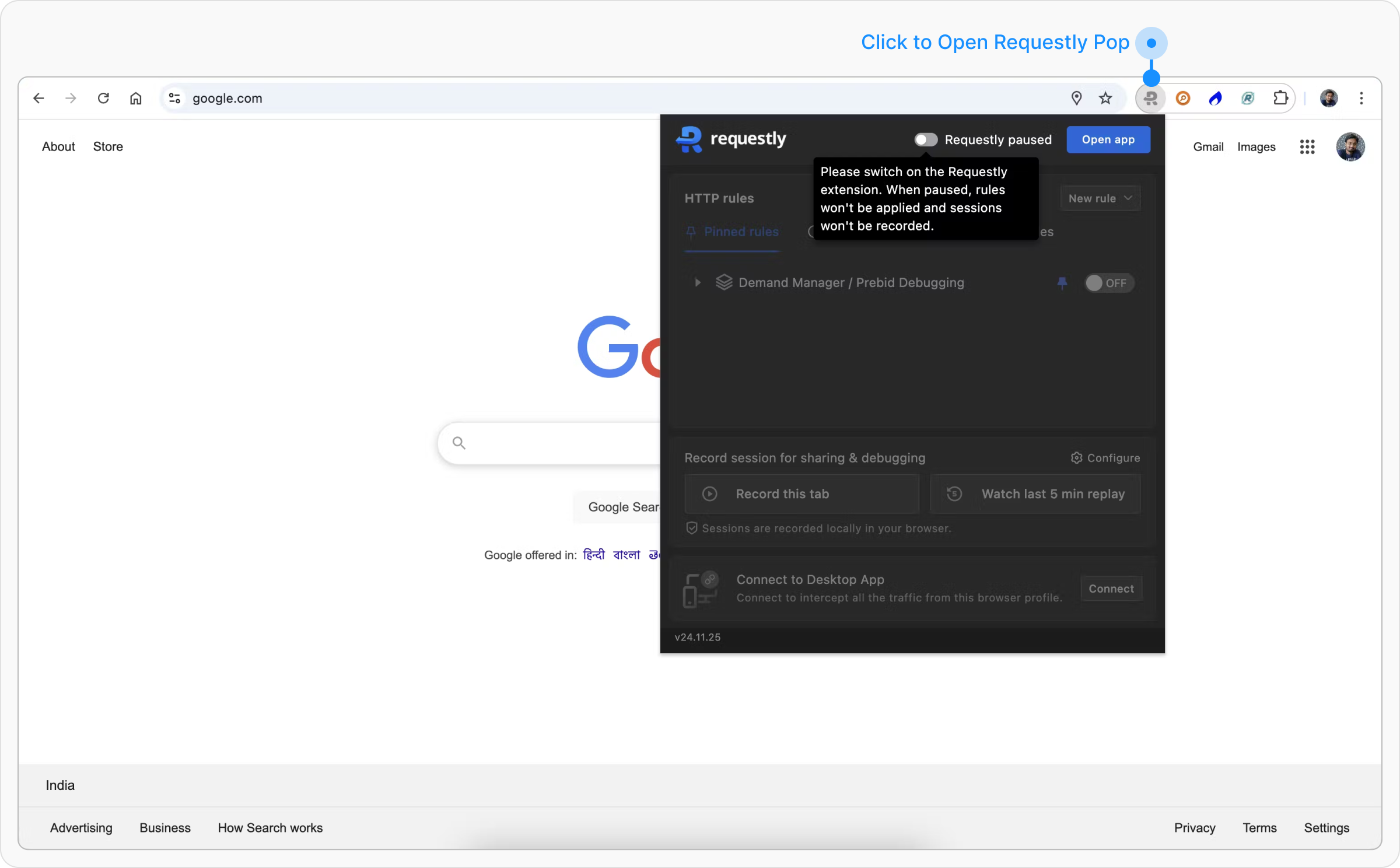 Click the Requestly icon in your browser’s toolbar and find the toggle labeled "Requestly paused." Click the toggle to activate Requestly. The label will change to "Requestly running," confirming activation.
 Refresh your browser page to ensure that Requestly’s rules are properly applied.