> ## Documentation Index
> Fetch the complete documentation index at: https://requestly-mintlify-changelog-requestly-past-week-38456.mintlify.site/llms.txt
> Use this file to discover all available pages before exploring further.

# Environment

You can easily **export environments to a** `.json` file and **import them back into Requestly** whenever needed. This helps you back up environment variables, move them across devices, or sync with teammates.

## Exporting Environments

Exporting an environment downloads a `.json` file containing all key-value variable pairs in that environment.

## How to Export an Environment

<Steps>
  <Step title="Download and Open Requestly">
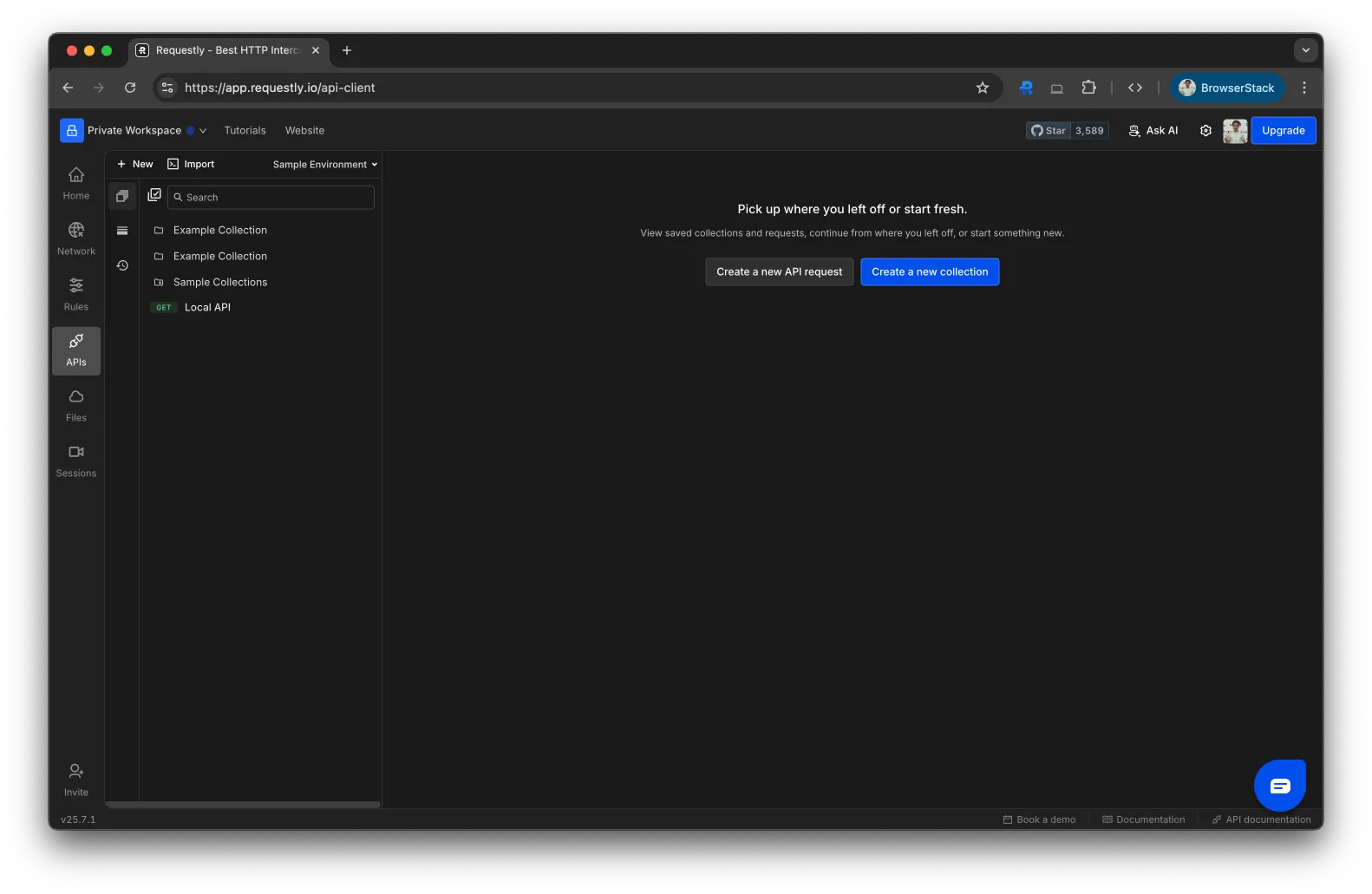
    Download Requestly and open the dashboard. From the sidebar, navigate to **APIs**.
    <img src="https://mintcdn.com/requestly-mintlify-changelog-requestly-past-week-38456/KMakbnZawnsQHNXI/images/import-export-api-environment/674bfc44-0e08-4d28-95d8-f3ee03e61dad.png?fit=max&auto=format&n=KMakbnZawnsQHNXI&q=85&s=cf537991540181ab924d3159b1203344" align="center" fullwidth="false" width="1582" height="1031" data-path="images/import-export-api-environment/674bfc44-0e08-4d28-95d8-f3ee03e61dad.png" />
  </Step>

  <Step title="Open the Environments Panel">
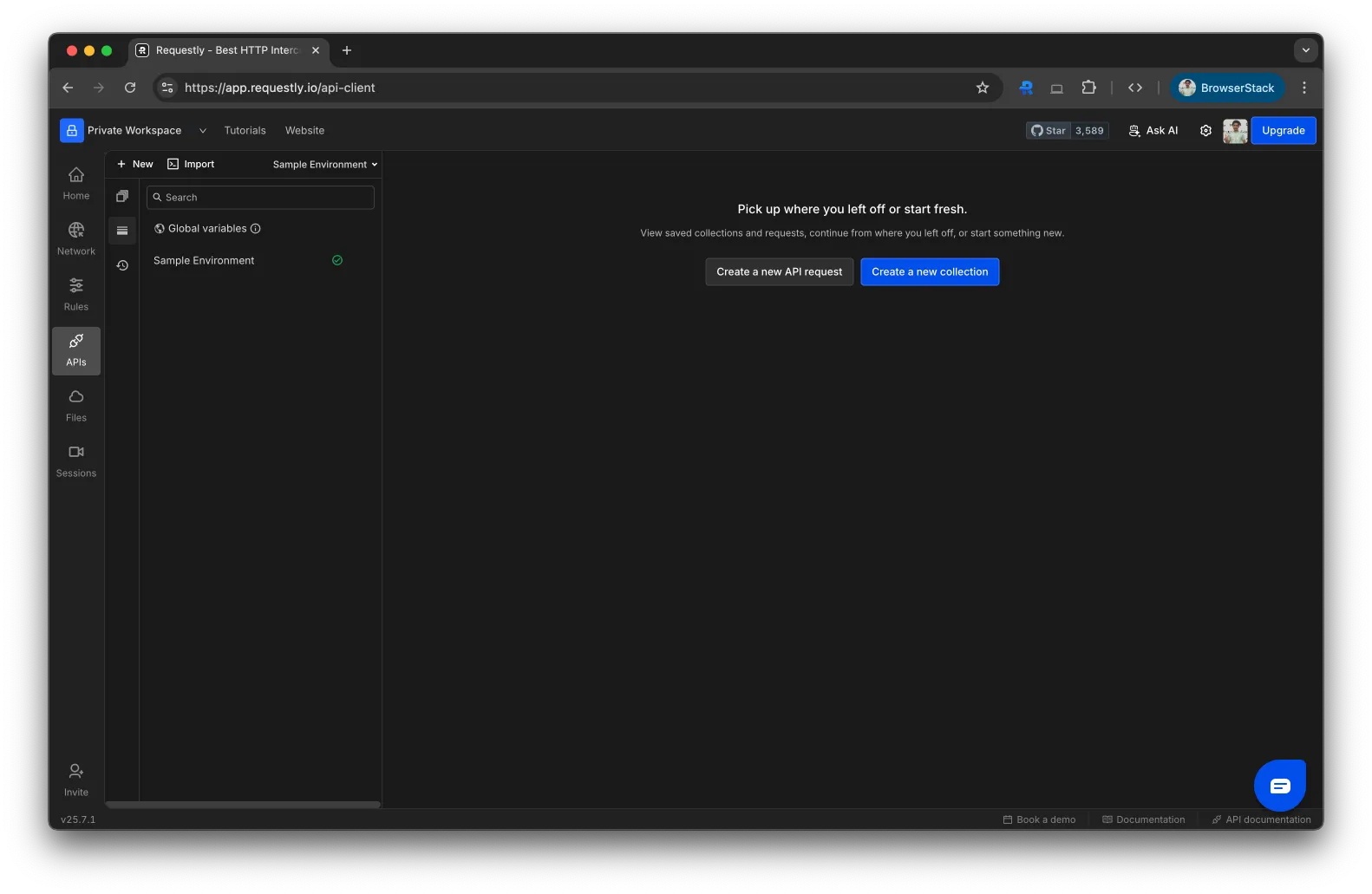
    In the left sidebar, click on the “Environments” tab to view the list of existing environments.
    <img src="https://mintcdn.com/requestly-mintlify-changelog-requestly-past-week-38456/KMakbnZawnsQHNXI/images/import-export-api-environment/61e8502f-09b6-45c7-98b1-cc882083911c.png?fit=max&auto=format&n=KMakbnZawnsQHNXI&q=85&s=fc54fe11e5810f4824bf35eef484bdf8" align="center" fullwidth="false" width="1582" height="1031" data-path="images/import-export-api-environment/61e8502f-09b6-45c7-98b1-cc882083911c.png" />
  </Step>

  <Step title="Export the Environment">
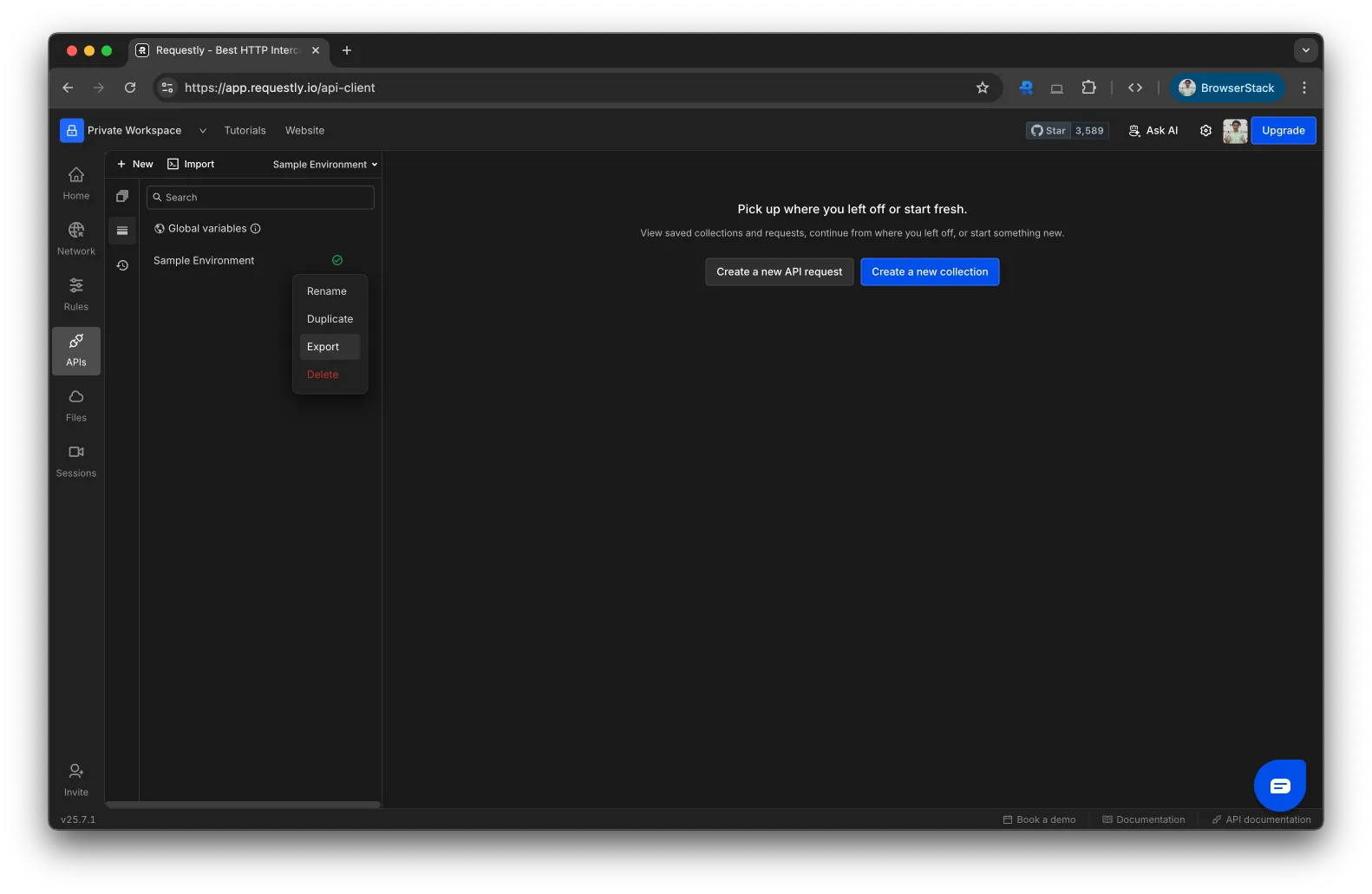
    Hover over the environment you want to export, click the **three-dot menu (⋮)**, and select **Export**.
    <img src="https://mintcdn.com/requestly-mintlify-changelog-requestly-past-week-38456/KMakbnZawnsQHNXI/images/import-export-api-environment/c9b297f8-767e-42bb-b6df-a39e39038870.png?fit=max&auto=format&n=KMakbnZawnsQHNXI&q=85&s=fd382309b9df47dad171bbab707a8458" align="center" fullwidth="false" width="1582" height="1031" data-path="images/import-export-api-environment/c9b297f8-767e-42bb-b6df-a39e39038870.png" />
  </Step>

  <Step title="Download your environment">
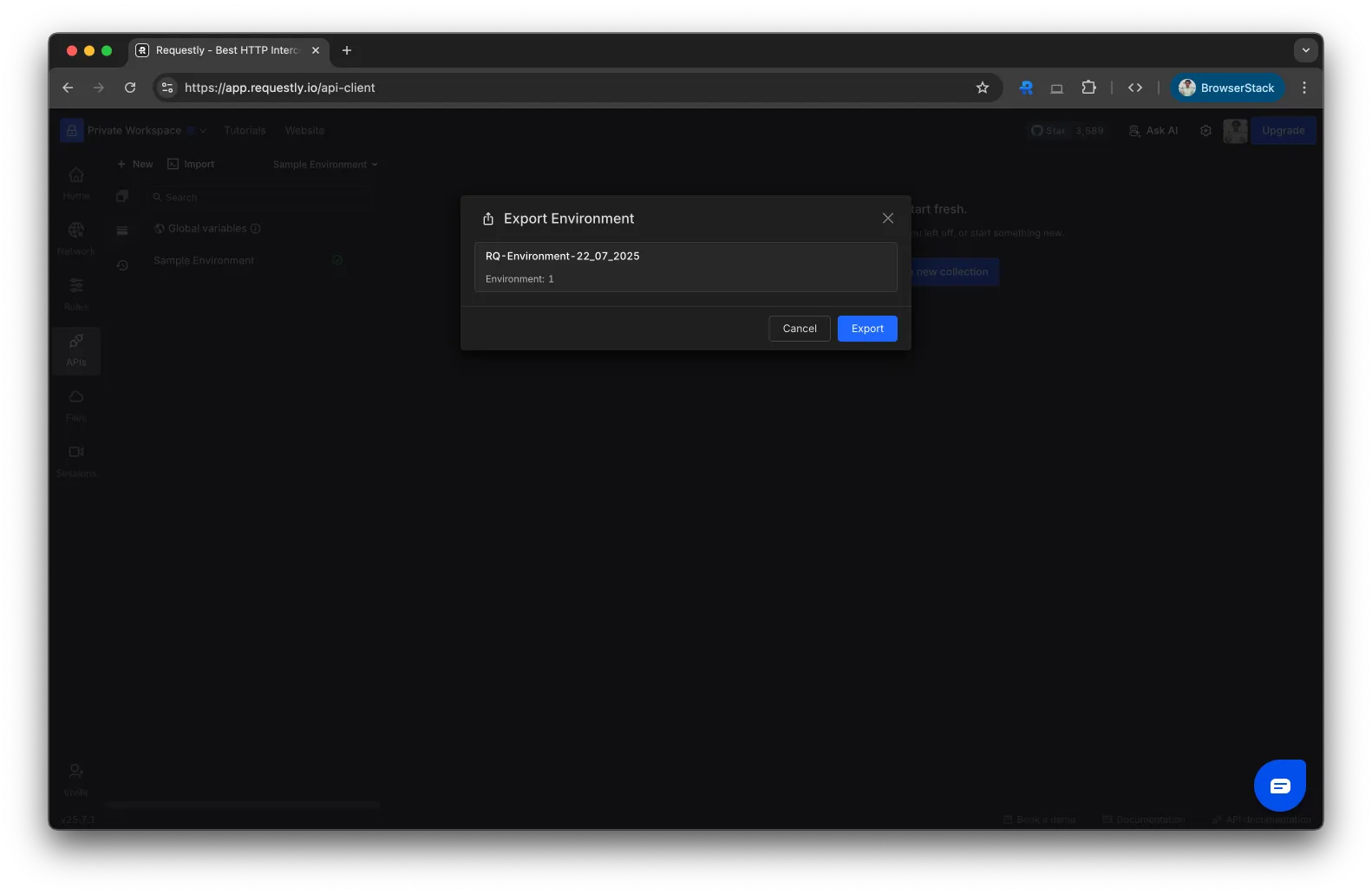
    A modal will appear showing the collection name.

    Click **Export** to download the `.json` file to your device
    <img src="https://mintcdn.com/requestly-mintlify-changelog-requestly-past-week-38456/KMakbnZawnsQHNXI/images/import-export-api-environment/30f4ec9e-9cae-4cbd-8dd9-82dd5ab5891b.png?fit=max&auto=format&n=KMakbnZawnsQHNXI&q=85&s=fcda874ada5867471f5942099eea4e37" align="center" fullwidth="false" width="1582" height="1031" data-path="images/import-export-api-environment/30f4ec9e-9cae-4cbd-8dd9-82dd5ab5891b.png" />
  </Step>
</Steps>

## Importing Environments

You can re-import an exported environment into any workspace to continue using your environment variables.

### How to Import an Environment

<Steps>
  <Step title="Download and Open Requestly">
    Download Requestly and open the dashboard. From the sidebar, navigate to **APIs**.
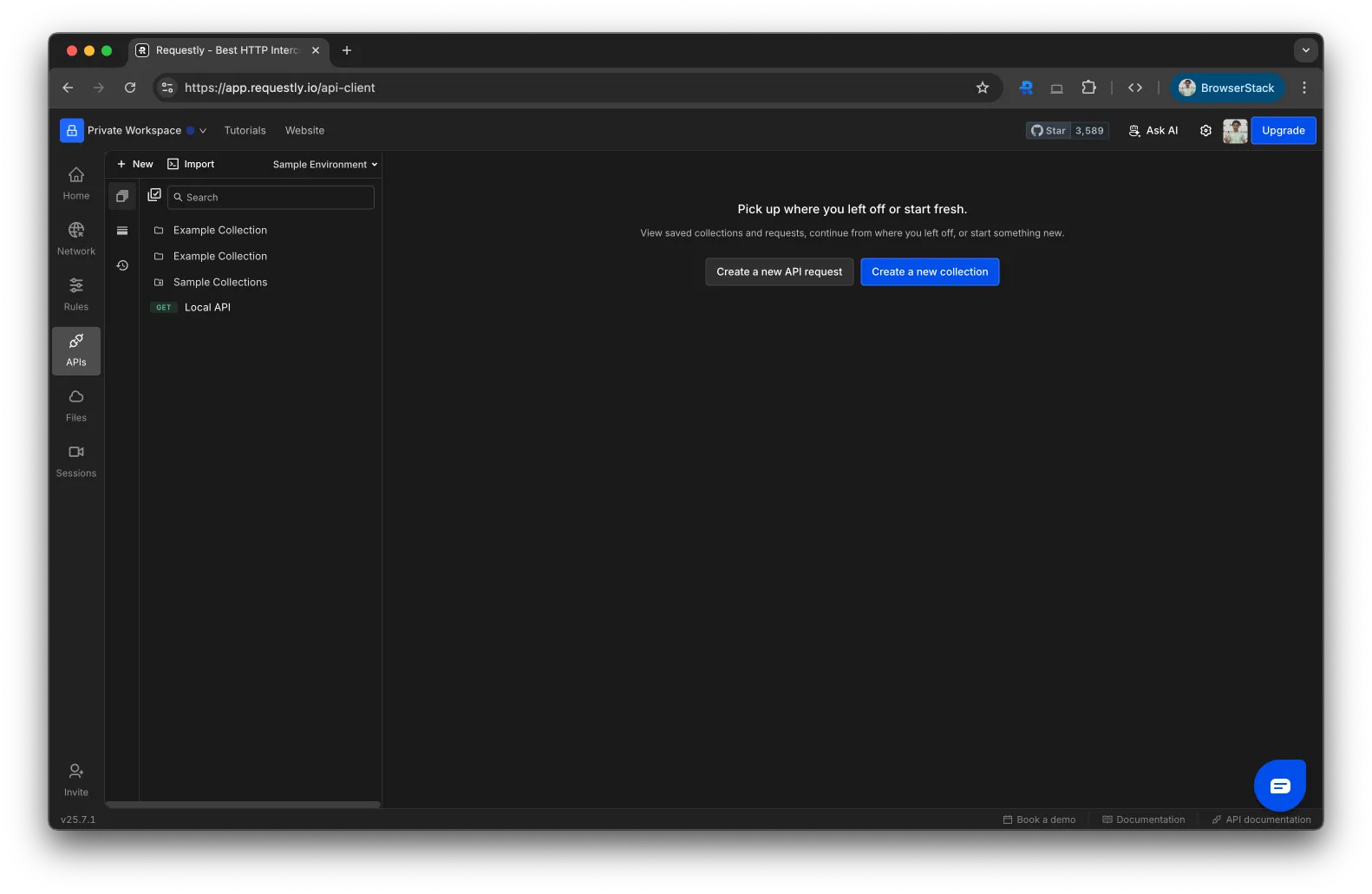
    <img src="https://mintcdn.com/requestly-mintlify-changelog-requestly-past-week-38456/KMakbnZawnsQHNXI/images/import-export-api-environment/f4c6457c-b5b0-47cf-ba9c-76d049679e8f.png?fit=max&auto=format&n=KMakbnZawnsQHNXI&q=85&s=c19eeafb47e65735076c460cfe39271c" align="center" fullwidth="false" width="1582" height="1031" data-path="images/import-export-api-environment/f4c6457c-b5b0-47cf-ba9c-76d049679e8f.png" />
  </Step>

  <Step title="Click on &#x22;Import&#x22;">
    In the top-left corner of the client, click **Import**. This opens a dropdown with multiple import options.
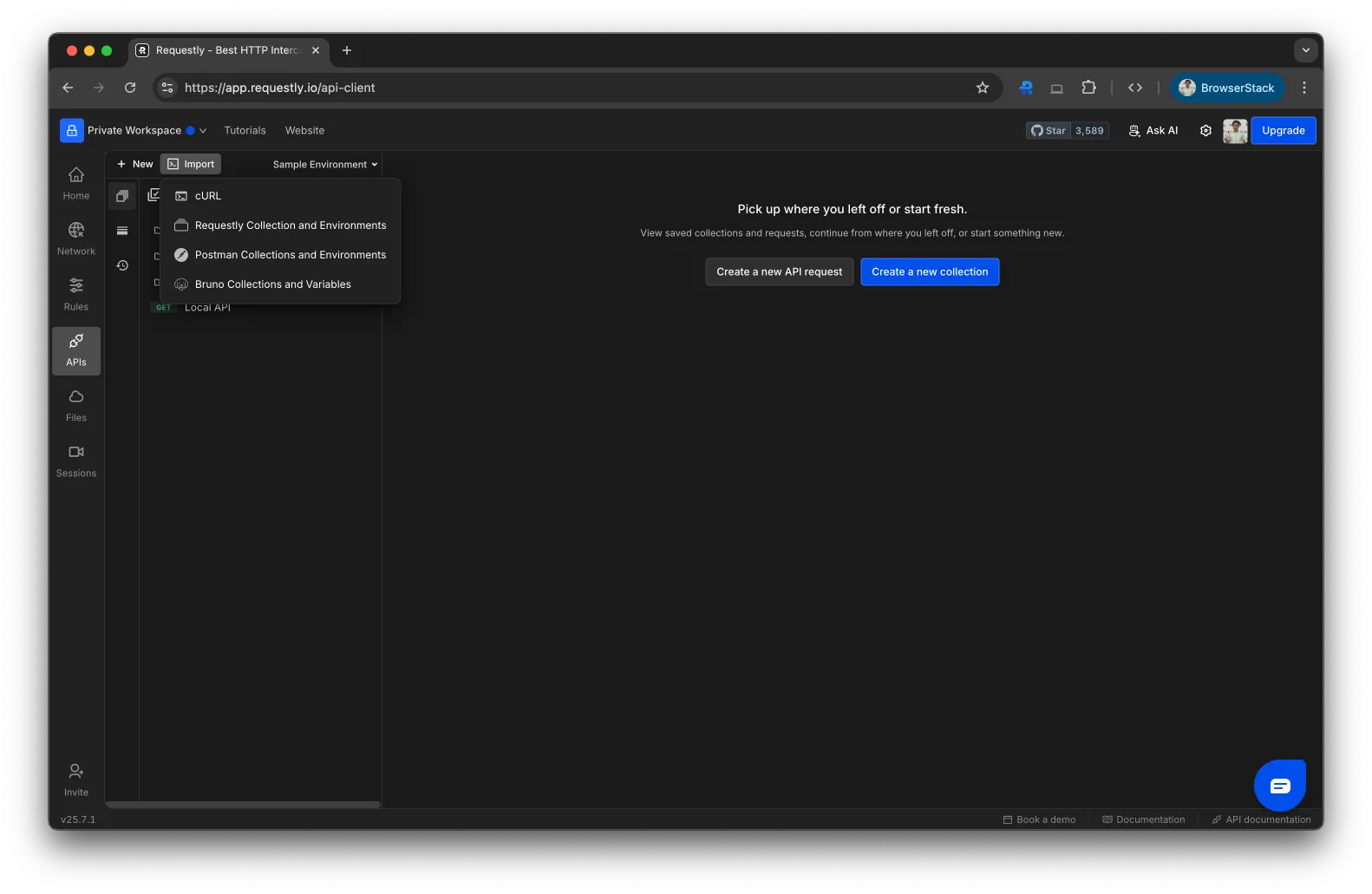
    <img src="https://mintcdn.com/requestly-mintlify-changelog-requestly-past-week-38456/KMakbnZawnsQHNXI/images/import-export-api-environment/fa7b69fa-843e-4395-b8fa-e8afbc33c65a.png?fit=max&auto=format&n=KMakbnZawnsQHNXI&q=85&s=d31f5a4fafc177aa6cc856e72e3b5087" align="center" fullwidth="false" width="1582" height="1031" data-path="images/import-export-api-environment/fa7b69fa-843e-4395-b8fa-e8afbc33c65a.png" />
  </Step>

  <Step title="Select &#x22;Requestly’s Collection & Environment&#x22;">
    Choose **Requestly’s Collection & Environment** to open the import modal.
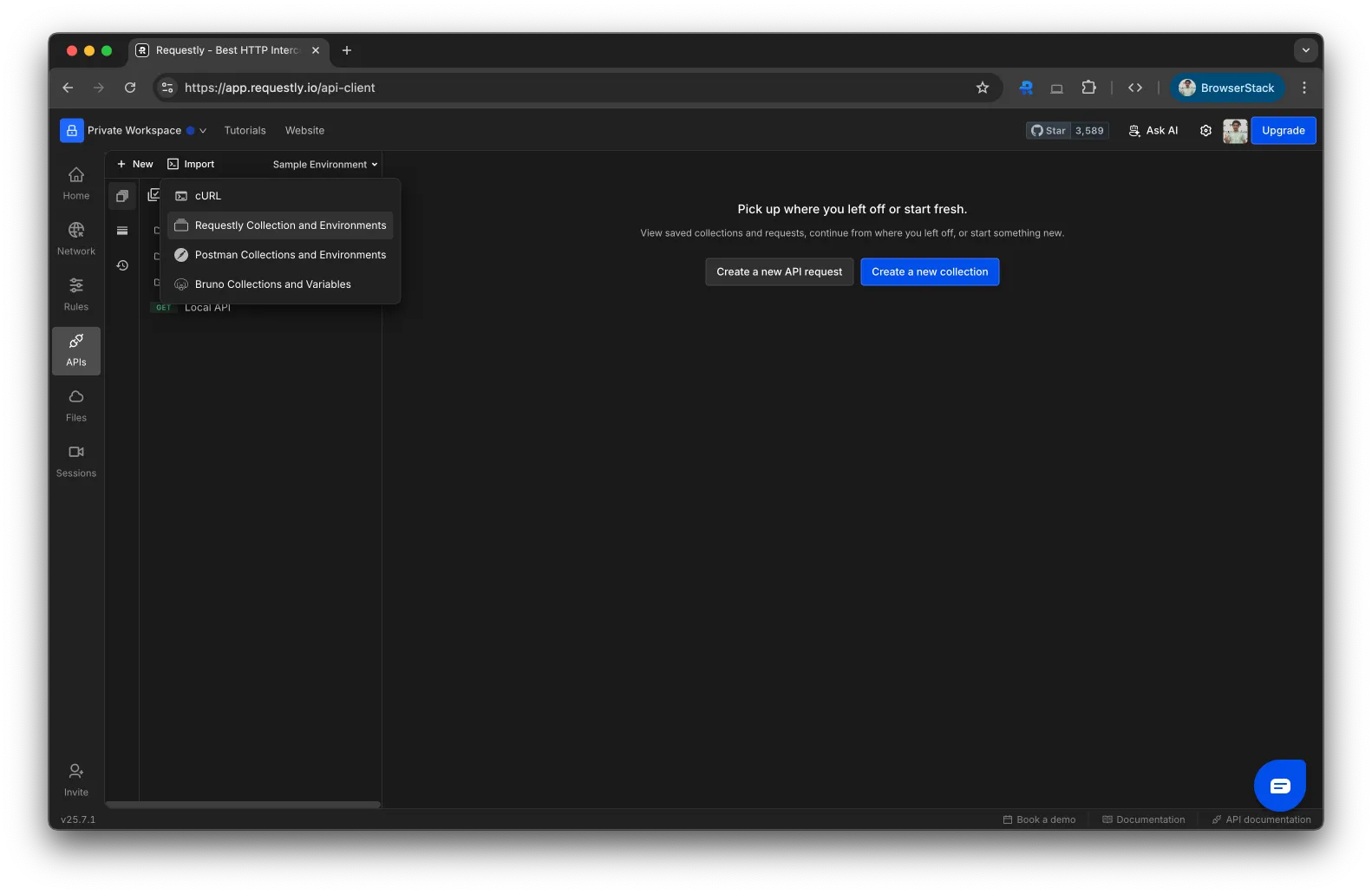
    <img src="https://mintcdn.com/requestly-mintlify-changelog-requestly-past-week-38456/KMakbnZawnsQHNXI/images/import-export-api-environment/b9646ebd-03bc-4ee8-ad57-d341eef2dfca.png?fit=max&auto=format&n=KMakbnZawnsQHNXI&q=85&s=bd53bd55947342a976132247375a013c" align="center" fullwidth="false" width="1582" height="1031" data-path="images/import-export-api-environment/b9646ebd-03bc-4ee8-ad57-d341eef2dfca.png" />
  </Step>

  <Step title="Upload Your File">
    Click to browse or drag and drop the `.json` file containing your environment.
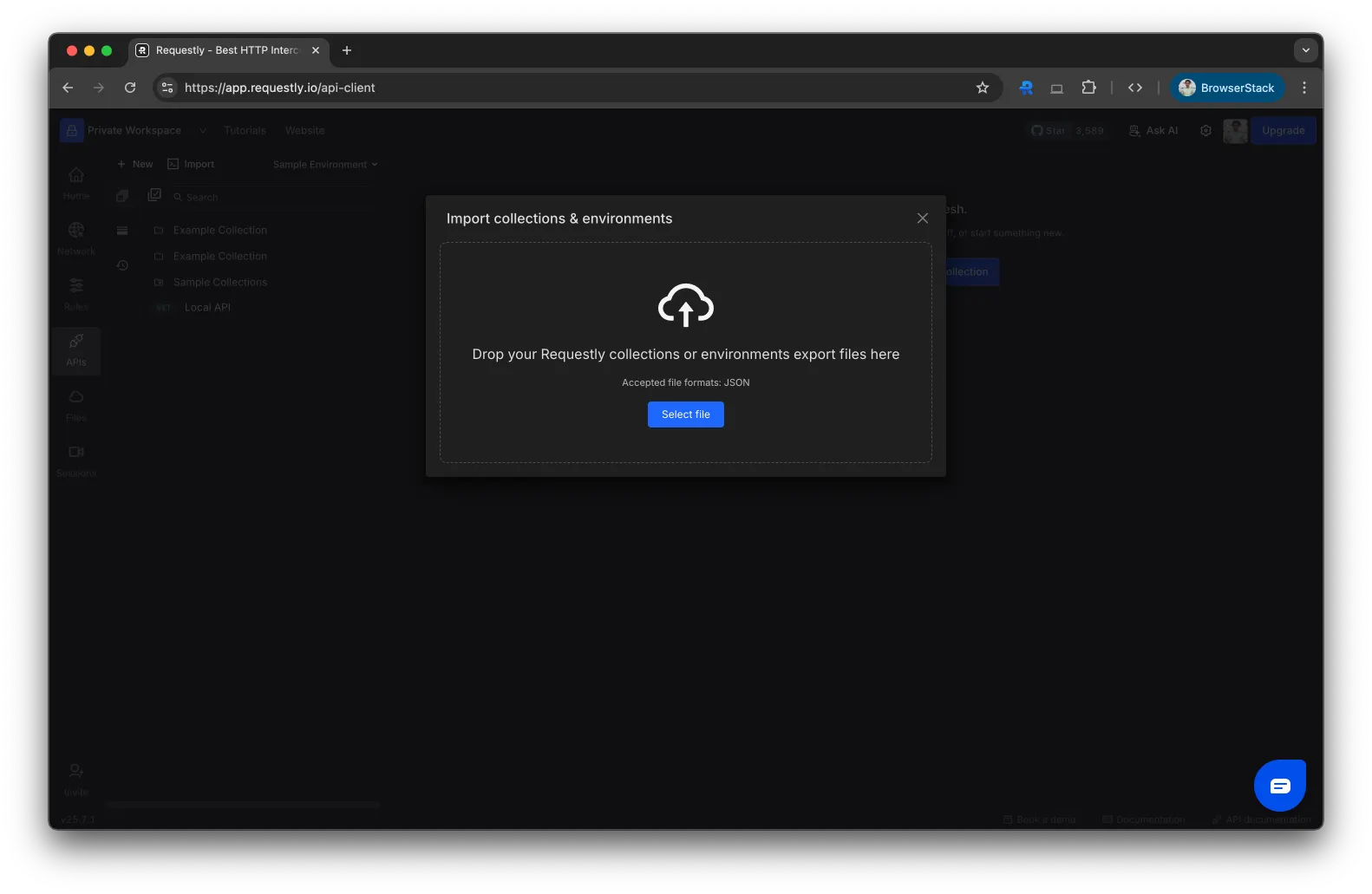
    <img src="https://mintcdn.com/requestly-mintlify-changelog-requestly-past-week-38456/KMakbnZawnsQHNXI/images/import-export-api-environment/4d3bf267-cc75-4230-91db-013b0a326edd.png?fit=max&auto=format&n=KMakbnZawnsQHNXI&q=85&s=e0542e4dbe311473aa9f8822f1a0258c" align="center" fullwidth="false" width="1582" height="1031" data-path="images/import-export-api-environment/4d3bf267-cc75-4230-91db-013b0a326edd.png" />

    Once uploaded, the environment will appear in your workspace under the “Environments” tab.
  </Step>
</Steps>
